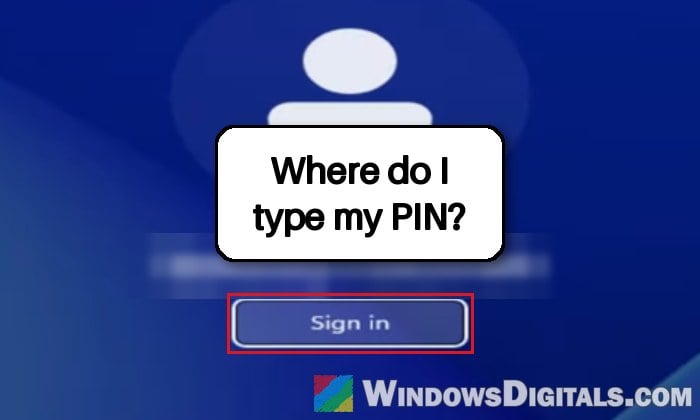
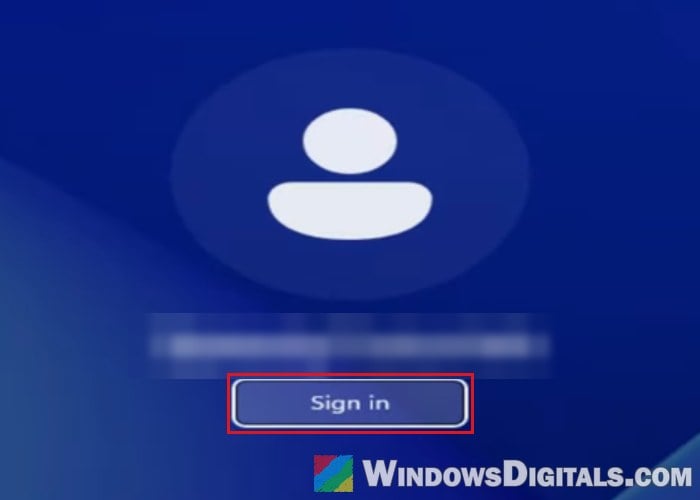
If you press a key or click on your Windows 11 lock screen and the background blurs like it normally does, but no PIN or password box shows up, there’s simply nowhere to type and no way to get to your desktop. On some PCs you get your name with a “Sign in” button instead, which shows a loading circle for a second and then drops you back on the same screen. This guide will walk you through the things you can try to bring the sign-in box back, starting with the quick ones.
Also see: Windows Hello PIN and Fingerprint Missing from Sign-in Options
Why is there no PIN box on the lock screen?
The PIN box comes from Windows Hello, so the trouble starts when Windows Hello or the sign-in screen fails to load. You then get the blurred background and the icons in the bottom-right corner (network, accessibility and power), but nothing in the middle, or only your name with a “Sign in” button where the box should be. It’s not a rare problem, and it’s been showing up on Reddit and Microsoft’s forums for months on all kinds of desktops and laptops.
There isn’t one single cause. These are the ones people with this problem point to:
- Windows Hello data that got damaged, so the PIN can’t load.
- Damaged system files or a recent Windows update.
- A driver change right before it happened, such as rolling back an NVIDIA driver.
- Removing a built-in Windows app with PowerShell.
Try the fixes below in order, from the simplest to the most drastic.
Try Ctrl + Alt + Delete or type your PIN anyway
Before anything else, press Ctrl + Alt + Delete on the lock screen. On some PCs this is enough to make the sign-in box and the rest of the screen appear.
If that does nothing, the box might be there but invisible. Click once where the box usually sits, type your PIN (or password) and press Enter.
Tip: After an August 2025 update, the password icon under Sign-in options could show as a blank spot that still worked when clicked. Microsoft fixed it in early 2026, but if you see a gap there, click it.
Restart from the lock screen’s power button
A restart, sometimes a forced one, has cleared it for some people. Click the Power icon in the bottom-right corner of the lock screen and choose Restart. If the screen doesn’t respond at all, hold down the PC’s power button until it turns off, then turn it back on.
If the box still isn’t there, move on to the recovery tools.
Run Startup Repair from the recovery screen
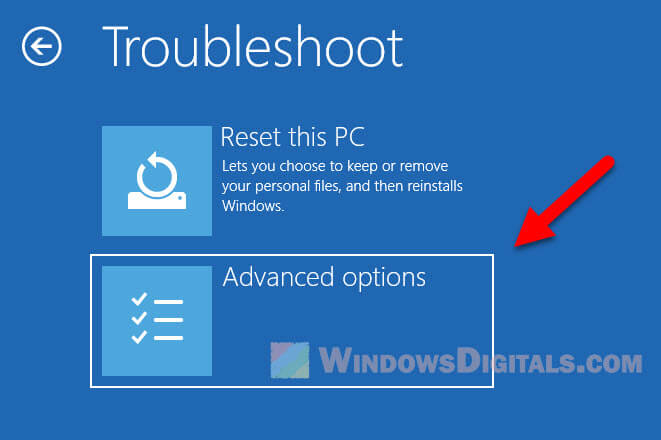
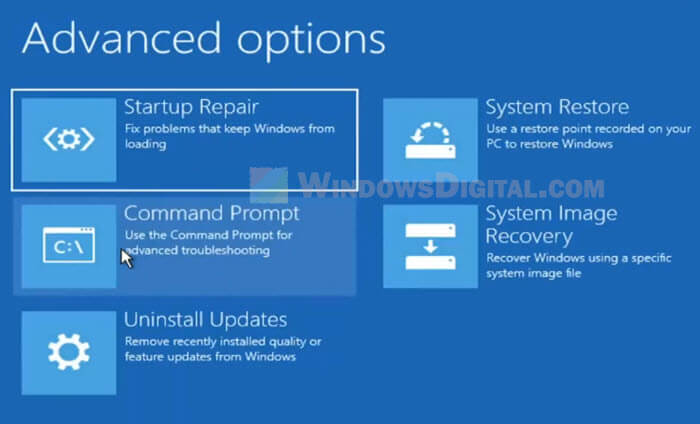
Windows has repair tools you can reach without signing in. One of them, Startup Repair, looks for problems that keep Windows from starting properly, like damaged system files, and tries to fix them. To get there, hold down Shift while you click Power > Restart on the lock screen. If that doesn’t work, turn the PC off while it’s booting twice in a row, and the third start should open Automatic Repair, where you choose Advanced options.
Then follow the steps below:
- Select Troubleshoot > Advanced options.
- Select Startup Repair and let it finish.
- Restart and check if the PIN box shows up.
Note: If your drive is encrypted with BitLocker, some of these tools will ask for your BitLocker recovery key, so have it ready.
Pro tip: How to Startup Repair Windows 10/11 using Command Prompt
Sign in through Safe Mode, then reset your PIN
Safe Mode loads Windows with only the basics. Signing in there once can be enough to clear whatever blocks the normal sign-in screen, and you can remove the broken PIN there. You’ll need your account password for this (for a Microsoft account, that’s the password you use online).
- Open the recovery screen as described in the previous section.
- Select Troubleshoot > Advanced options > Startup Settings, then Restart.
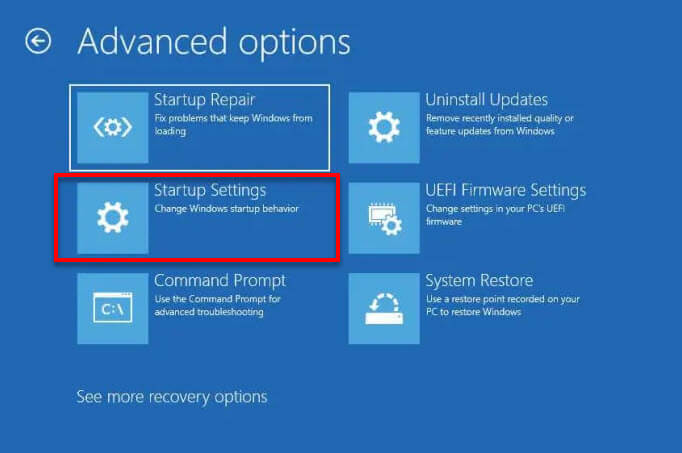
- After the restart, press 5 or F5 for Safe Mode with Networking (or 4 or F4 for plain Safe Mode). With a Microsoft account, the networking version is the better choice.

- Sign in with your password.
- Go to Settings > Accounts > Sign-in options, expand PIN (Windows Hello) and click Remove.
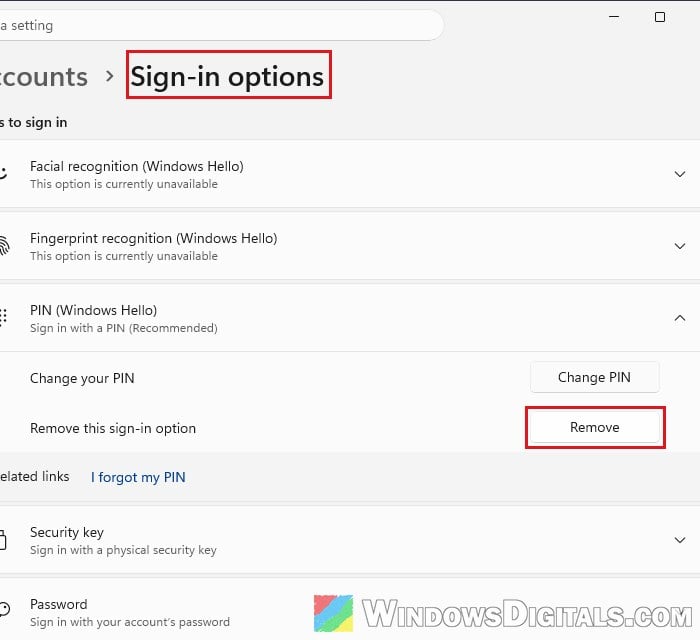
- Restart normally. If the sign-in box is back, sign in and set up a new PIN in the same place.
Safe Mode doesn’t show the sign-in box for everyone with this problem. If it’s just as blank there, skip to the recovery Command Prompt and the update options further down (or use the Ngc fix below from another administrator account, if the PC has one).
Might be useful: Enter Safe Mode in Windows 11/10 when PC isn’t booting
Reset Windows Hello by renaming the Ngc folder
Windows keeps the PIN data of every account on the PC in a folder called Ngc. When that data is damaged, the PIN box can fail to show at all, and renaming the folder makes Windows start over with Windows Hello. It’s especially worth trying if you get the “Sign in” button that does nothing.
You need to be signed in somewhere to do this: in Safe Mode (previous section) or in another administrator account on the same PC. Keep in mind that it removes the PIN, fingerprint and face sign-in for every account on the PC, so make sure you know your password first.
- Open Command Prompt as administrator.
- Type the following commands one by one, and press Enter after each:
takeown /f C:\Windows\ServiceProfiles\LocalService\AppData\Local\Microsoft\Ngc /r /d y
icacls C:\Windows\ServiceProfiles\LocalService\AppData\Local\Microsoft\Ngc /grant administrators:F /t
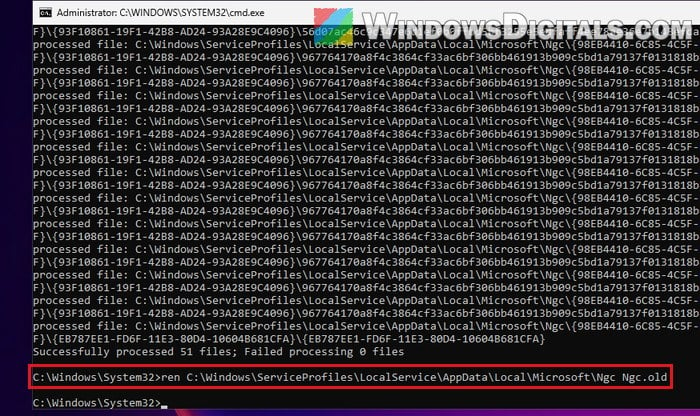
ren C:\Windows\ServiceProfiles\LocalService\AppData\Local\Microsoft\Ngc Ngc.old
The first two give administrators access to the folder, and the last one renames it.
- Restart your PC and sign in with your password.
- Set up a new PIN in Settings > Accounts > Sign-in options.
Related problem: MSConfig “Something happened and your PIN isn’t available”
Repair system files from the recovery Command Prompt
Damaged system files can also stop the sign-in screen from loading. The recovery screen’s Command Prompt can check them without starting Windows. Here’s how:
- On the recovery screen, select Troubleshoot > Advanced options > Command Prompt.
- Type
dir C:\and press Enter, and check that you see the Windows folder. The Windows drive isn’t always C: here, so use the right letter in the next command. - Run the following command:
sfc /scannow /offbootdir=C:\ /offwindir=C:\Windows
- Once it’s done, close Command Prompt and continue to Windows.
If sfc found and repaired something, check whether the PIN box is back. For a full walkthrough, see: How to Run SFC Scannow Command At Boot in Windows 10/11.
Uninstall the latest update or restore your PC
If the box disappeared right after an update, removing that update is worth a try. The recovery screen can do it without signing in, and your files and apps stay. Go to Troubleshoot > Advanced options > Uninstall Updates and remove the latest quality update first.
Sometimes the update won’t uninstall, so if it fails, move on. The same screen has System Restore, which takes Windows back to an earlier restore point, if you have one. It only rolls back system files and settings, so your personal files aren’t affected. For more on how that works, see: How to System Restore Windows 11/10 to a Previous Date.
Reset this PC as a last resort
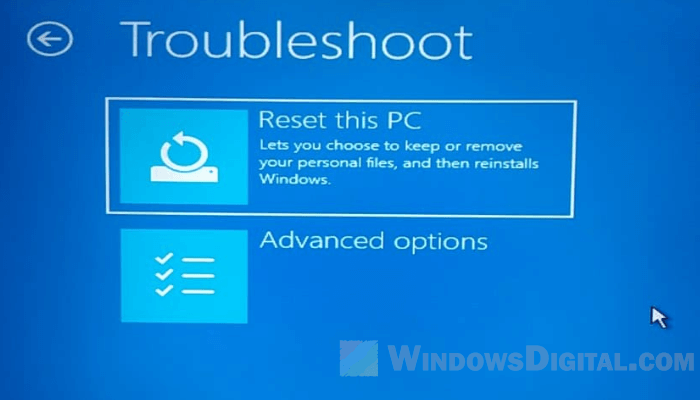
If nothing above brings the sign-in box back, reset Windows and keep your files. From the recovery screen, select Troubleshoot > Reset this PC > Keep my files. Your personal files stay, but your apps and settings are removed, so you’ll have to reinstall your programs afterward.
If even the reset fails, a clean install of Windows 11 is what’s left. It wipes the drive, so get your files off it first if you can.