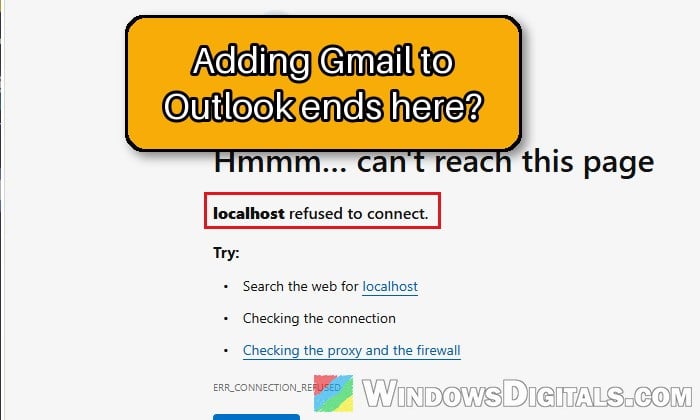
Adding a Gmail or Google Workspace account to classic Outlook on Windows 11 or 10 normally takes one quick sign-in in your browser, and Outlook does the rest. Instead, after you allow access on Google’s page, the browser ends on “localhost refused to connect” (sometimes with localhost:8011 and ERR_CONNECTION_REFUSED), or it says the sign-in is complete while Outlook keeps telling you the account needs attention. This guide will help you get the account connected again.
Also see: How to Add Gmail Account to Mail App in Windows 11
Why does Outlook end up on a “localhost refused to connect” page?
When you add a Google account, classic Outlook sends you to Google’s sign-in page in your browser. Once you allow access, Google hands the sign-in back to Outlook through a local address on your own PC, localhost:8011. If nothing picks up that hand-off, the browser shows “localhost refused to connect” and Outlook never gets the sign-in.
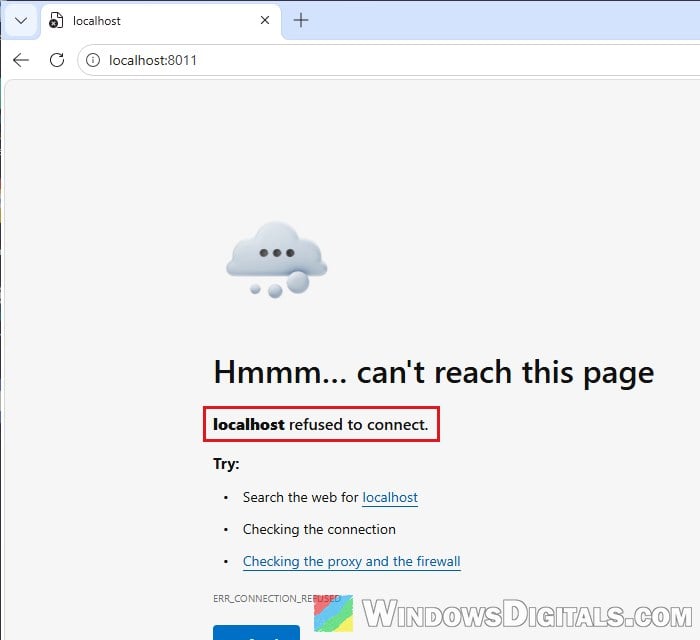
When adding the account fails like this, it usually comes down to one of these:
- The permission box on Google’s page was left unticked, so Outlook didn’t get access to your mail.
- An old or broken saved sign-in for that account is still stored in Windows.
- Extra entries in the hosts file, left behind by an old program, a VPN or a proxy.
- A temporary problem on Google’s or Microsoft’s side, in which case there’s nothing to fix on your PC.
First, check if it’s a temporary Google or Microsoft problem
If the browser shows Google’s “This app has reached its sign-in rate limit for now” page with “Error 403: rate_limit_exceeded“, the problem isn’t your PC. Several people hit this on November 12 and 13, 2026, around the same time as a large Outlook outage, and for some it cleared on its own about a day later. Stop retrying for a while, since every attempt counts toward the limit, and try again later, or the next day if it still fails. If Outlook mail isn’t working at all, check https://status.cloud.microsoft for an outage.
Update Outlook and retry with the permission box ticked
According to Microsoft, the Gmail sign-in fails when the box on Google’s “Select what Microsoft apps & services can access” page isn’t ticked. That box reads “Read, compose, send, and permanently delete all your email from Gmail“, and Outlook can’t sync your mail without it. Newer versions of Outlook (Current Channel Version 2412, Build 18324.20168 or later) also add a Retry link to the error window.
- In Outlook, go to File > Office Account and click Update Options > Update Now. Let Office finish, then reopen Outlook.
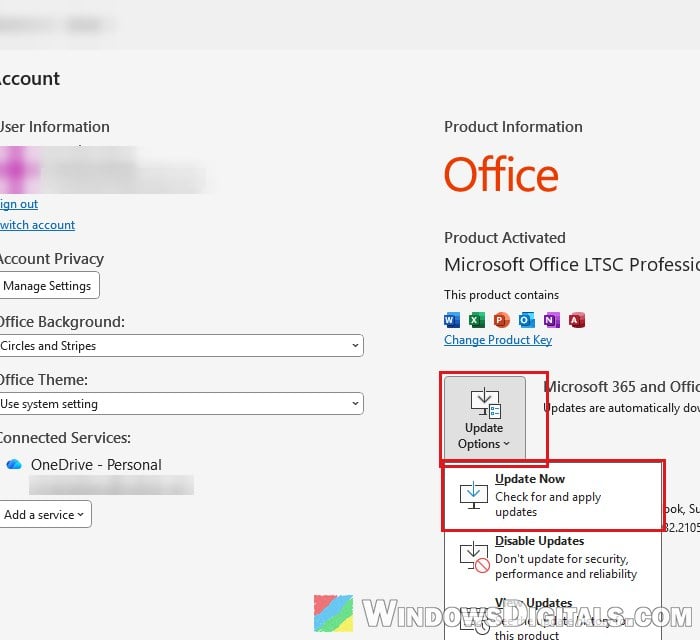
- Click the Sign in via browser bar or the Retry link in the error window (or add the account again with File > Add Account).
- On Google’s page, tick the “Read, compose, send, and permanently delete all your email from Gmail” box before you continue.
If Outlook stops asking you to sign in and starts syncing the account, you’re done.
Remove the saved Google sign-ins from Credential Manager
Outlook keeps each Gmail account’s sign-in as two entries in Windows’ Credential Manager. When those go bad, Outlook keeps using them instead of a new sign-in. Removing them forces a clean sign-in, and it’s what fixed it for several people on Reddit.
- Close Outlook.
- Search for “Credential Manager” in the Start menu and open it.
- Click Windows Credentials.
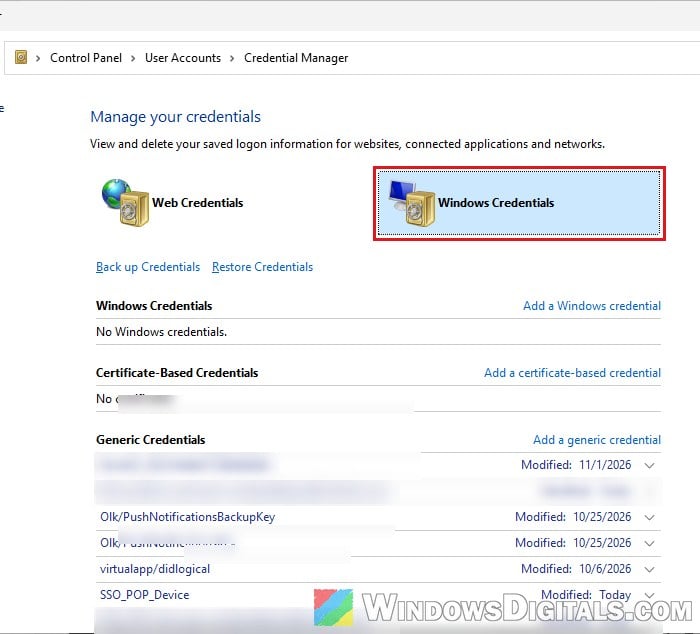
- Under Generic Credentials, look for entries that start with
MicrosoftOffice16_Data:OAUTH2. Expand each one: the Gmail ones havetp_google_imap_Oauth2in their full name. - Click Remove on both entries for the Gmail account that doesn’t work. If you can’t tell which entries belong to which account, remove all the Gmail ones and sign in to each account again.
- Open Outlook, click the Sign in via browser bar (or File > Add Account if you removed the account), and tick the permission box on Google’s page.
The account should then reconnect and download mail again.
Might be useful: How to Forget Samba (SMB) Credentials in Windows 11/10
Remove Microsoft’s access in your Google Account
Microsoft’s own fix also removes Outlook’s access on Google’s side, so Outlook gets a brand new sign-in from Google next time.
- Close Outlook.
- Go to google.com, click your profile picture and select Manage your Google Account.
- Click Linked apps on the left, and find Microsoft apps & services in the list (or type it in the search box).
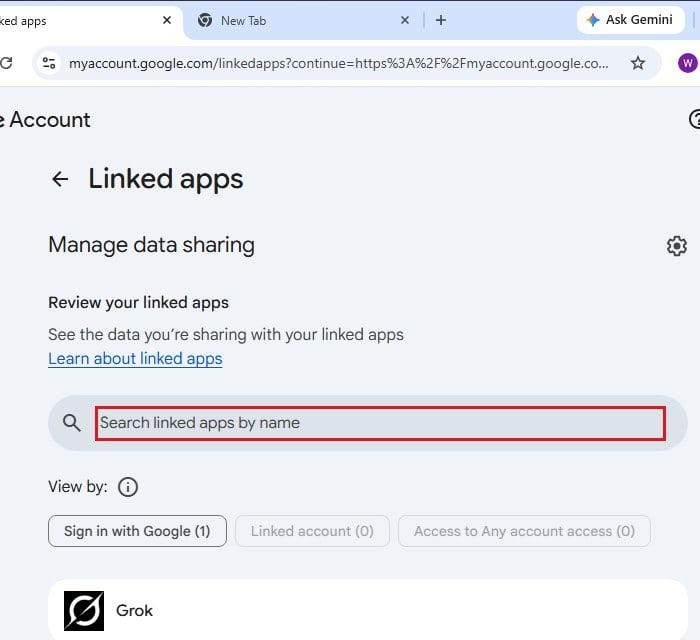
- Open it, click Delete all and confirm.
- Open Outlook and sign in to the account again, ticking the permission box.
If Outlook now syncs instead of showing the localhost page, that was it.
Check the hosts file for leftover entries
The hosts file tells Windows where certain addresses point. Old test tools, VPNs and proxies sometimes add lines to it and never remove them. Cleaning them out has fixed the localhost error for some people.
- Search for “Notepad” in the Start menu, right-click it and choose Run as administrator.
- Click File > Open, go to
C:\Windows\System32\drivers\etc, set the file type to All files, and openhosts. - In a default hosts file, every line starts with
#, even the twolocalhostlines at the bottom. Remove any line that doesn’t start with#and that you didn’t add yourself, especially extra127.0.0.1entries, and save.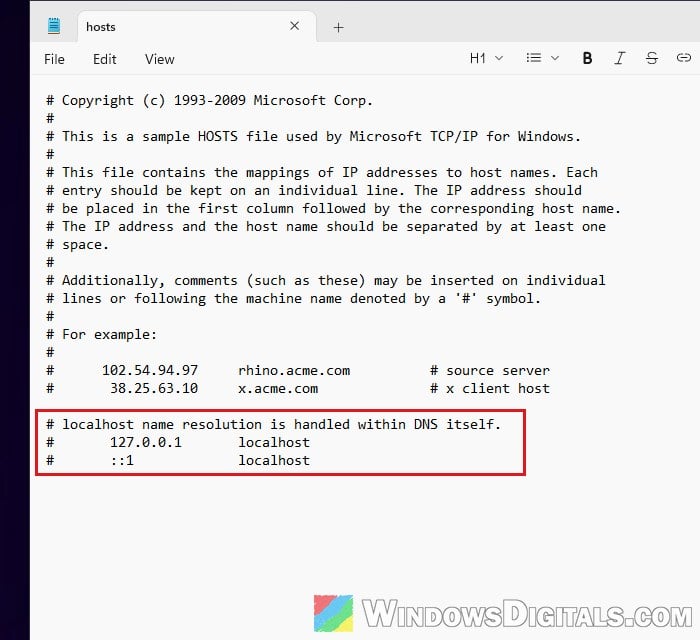
- If there’s a
hosts.icsfile in the same folder, put a#in front of each line withmshome.netin it and save. - Restart your PC and try the sign-in again.
Linked issue: Access Denied When Editing Hosts File in Windows 11/10
Restart, or use a different default browser for the sign-in
Outlook opens Google’s page in your default browser. For a related problem, where the Allow button on Google’s page is greyed out, Microsoft suggests restarting the PC first and, if that doesn’t help, temporarily switching your default browser, adding the account, then switching back.
To change it, go to Settings > Apps > Default apps, pick the other browser and click Set default.
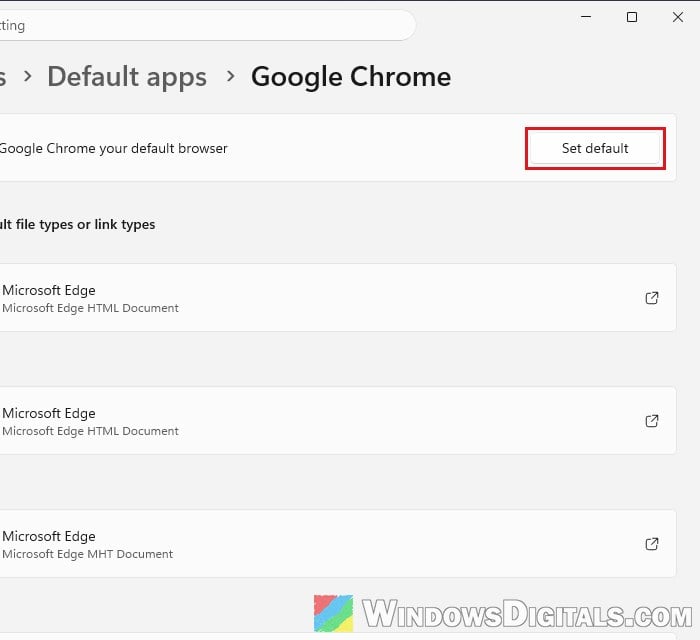
Then add the account in Outlook again, and switch your default browser back once it’s syncing.
Pro tip: How to Set Chrome as Default Browser in Windows 11
Set the account up manually with an app password
As a last resort, skip the browser sign-in and connect with a Google app password. Google doesn’t recommend it, it needs 2-Step Verification on your Google Account, and work or school Workspace accounts often can’t create one.
Outlook’s own Add Account sends a Gmail address straight to Google’s sign-in, even when you pick IMAP, so use the older setup window in Control Panel instead:
- Create an app password at
https://myaccount.google.com/apppasswordsand copy it. - Close Outlook, open Control Panel, type “Mail” in its search box and open Mail (Microsoft Outlook).
- Click Email Accounts… > New…, choose Manual setup or additional server types, click Next, choose POP or IMAP and click Next again.
- Fill in Your Name and Email Address, set Account Type to IMAP, enter
imap.gmail.comin Incoming mail server andsmtp.gmail.comin Outgoing mail server (SMTP), use your full Gmail address as the User Name, and paste the app password into Password.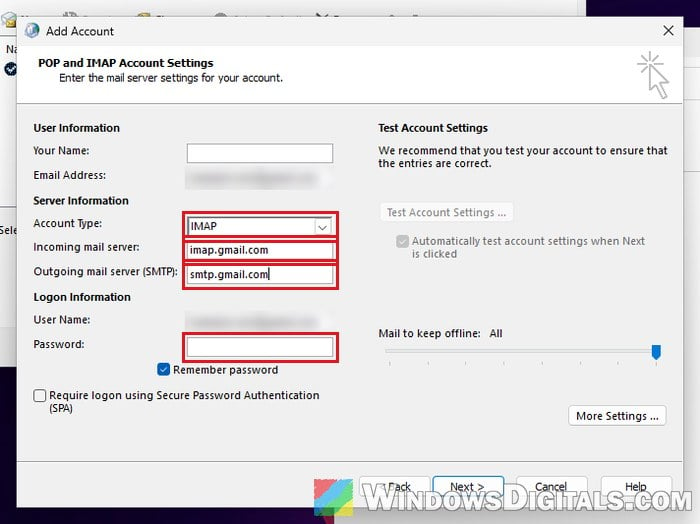
- Click More Settings …. On the Outgoing Server tab, tick “My outgoing server (SMTP) requires authentication” and keep “Use same settings as my incoming mail server“.
- On the Advanced tab, use port 993 with SSL/TLS for the incoming server (IMAP), and 465 with SSL/TLS (or 587 with STARTTLS) for the outgoing server (SMTP). Click OK, then Next to test and finish the setup.
Outlook then connects without the browser, so the localhost page can’t appear.