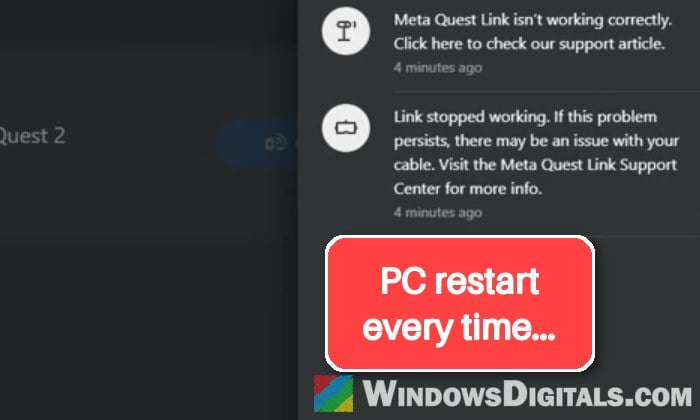
If your Meta Quest 3, 3S or Quest 2 drops out of Quest Link soon after a game starts and then just sits on “Attempting to connect to PC“, or doesn’t see your Windows 11 or 10 PC at all, you’ve probably found that unplugging the cable and restarting the headset don’t help, and only restarting the whole PC brings Link back. This guide will show you a much quicker way to get Link back, and what you can do to stop it from dropping again.
Also see: Meta Quest Link Keeps Freezing on Newer NVIDIA Drivers, Why?
Why won’t Quest Link reconnect after it disconnects?
When Link drops like this, the headset usually isn’t the part that’s stuck. Quest Link runs through a Windows service on your PC called the “Oculus VR Runtime Service” (OVRService), and when the connection breaks, that service can get stuck. Meta’s developer site even lists it as an issue under investigation: the Link connection stops responding and stays disconnected until the service’s process is ended. That’s why replugging the cable does nothing, and why the Link app on your PC can still show the headset as connected after you’ve unplugged it.
Several things can make it drop in the first place:
- An NVIDIA graphics driver from 595.71 up to 621.01, which Meta and NVIDIA both confirmed can freeze the Link stream.
- Windows turning off USB devices to save power while you play.
- A loose or worn cable, a hub, or a USB 2 port between the headset and the PC.
It tends to happen at heavier moments, like right after a game launches, during a loading screen or in a scene full of effects, which is why it can feel like the game itself kicks you out.
Linked issue: Meta Quest 3 “General Device Problem” in Link (Cable)
Restart the Oculus VR Runtime Service instead of the PC
As far as Link is concerned, restarting this service does the same job as restarting the whole PC, and it only takes a few seconds. Many people who had this problem on Reddit and Meta’s forums use this to get back into their game, so try it the next time Link drops. Since the service runs on the PC, it should help the same way if you use Air Link. Keep in mind that it only gets you reconnected. If the disconnects keep coming back, go through the fixes further below too.
Using the Oculus Debug Tool
The Oculus Debug Tool comes with the Meta Horizon Link app (called Meta Quest Link until early 2026), so you already have it.
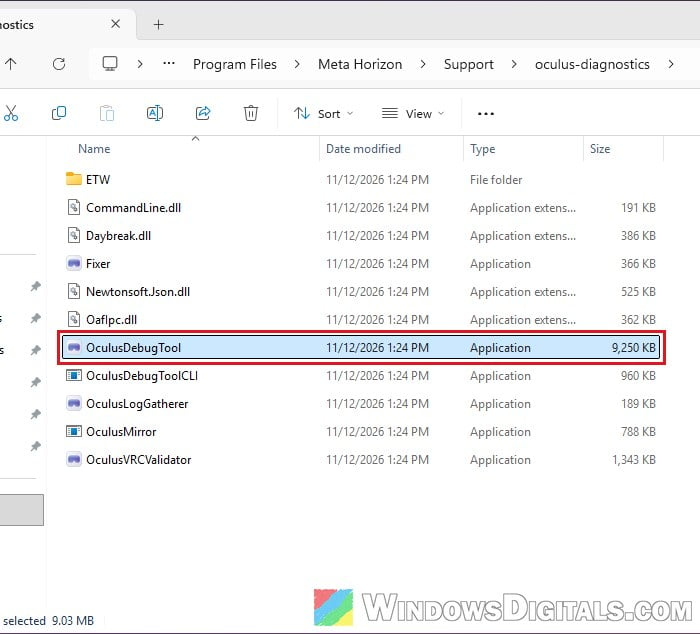
- Open File Explorer and go to the following folder:
C:\Program Files\Meta Horizon\Support\oculus-diagnostics
On older installs, the folder is
C:\Program Files\Oculus\Support\oculus-diagnosticsinstead. - Double-click “OculusDebugTool” to open it. Click “Yes” if Windows asks for administrator permission.
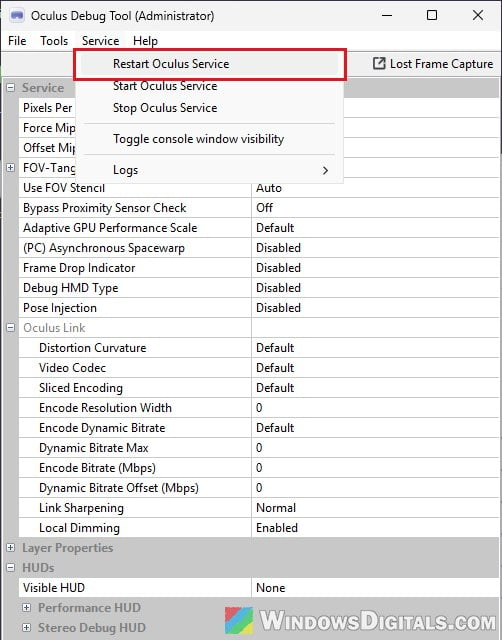
- In the menu bar, click “Service” and select “Restart Oculus Service“.
- Wait a few seconds, then connect Link again from your headset.
Using Services in Windows
If you’d rather not open the Debug Tool, you can restart the same service from Windows itself:
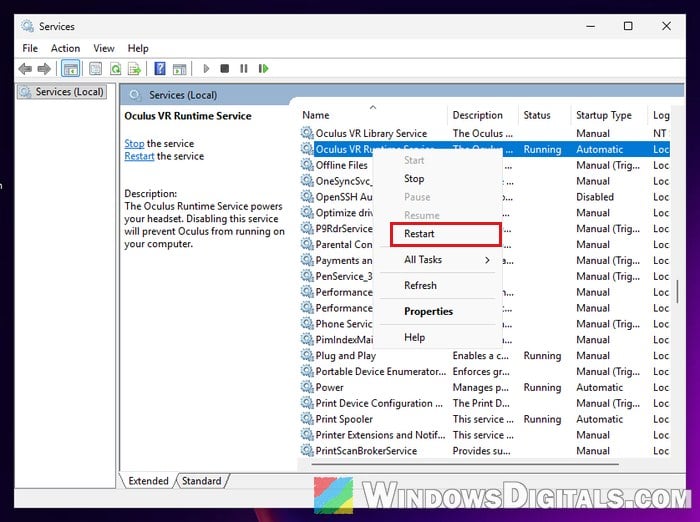
- Press Win + R, type “services.msc” and press Enter.
- Scroll down to “Oculus VR Runtime Service“.
- Right-click it and select “Restart“.
- Wait a few seconds, then connect Link again from your headset.
Please note that if you were playing through SteamVR, it may not see the headset again until you restart SteamVR as well.
Update your NVIDIA graphics driver to 621.01 or newer
If you have an NVIDIA graphics card, this is the most likely reason Link started dropping in the first place. Meta’s help page says NVIDIA drivers from 595.71 onward cause Meta Horizon Link to freeze in the headset. For many people, that freeze is when Link drops and won’t come back without a restart, and rolling back to an older driver made the disconnects stop.
The good news is that you no longer need an old driver for this. NVIDIA driver 621.01, released on October 21, 2026, lists the Meta Horizon Link freeze over USB as fixed, and it has stopped the freezes for people who updated. Newer drivers, like 621.14 from November 4, include the fix too.
- Open the “NVIDIA App” and check for driver updates, or go to
https://www.nvidia.com/en-us/geforce/game-ready-drivers/and click “Download for Desktop” or “Download for Laptop“, depending on your PC.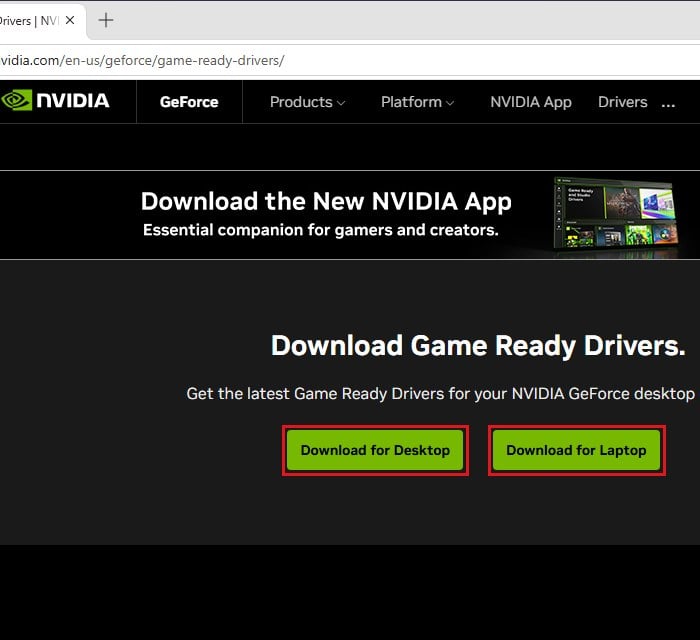
- Install it and restart your PC.
- If you had changed “Sliced Encoding” or “Video Codec” in the Oculus Debug Tool as a workaround for the freeze, set them back to “Default“.
NVIDIA’s fix only mentions Link over a USB cable, and it doesn’t work for everyone. If Link still drops on the new driver, the other workarounds are in our guide on Quest Link freezing on newer NVIDIA drivers.
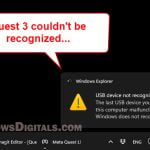
Related problem: PC can’t detect Quest 3 (USB device not recognized)
Stop Windows from turning off your USB ports to save power
Windows can switch off USB devices it thinks aren’t busy, and that can cut the Link connection in the middle of a game. Meta’s support suggests turning this off for your USB controllers. It won’t fix everyone’s problem, but it’s quick to check.
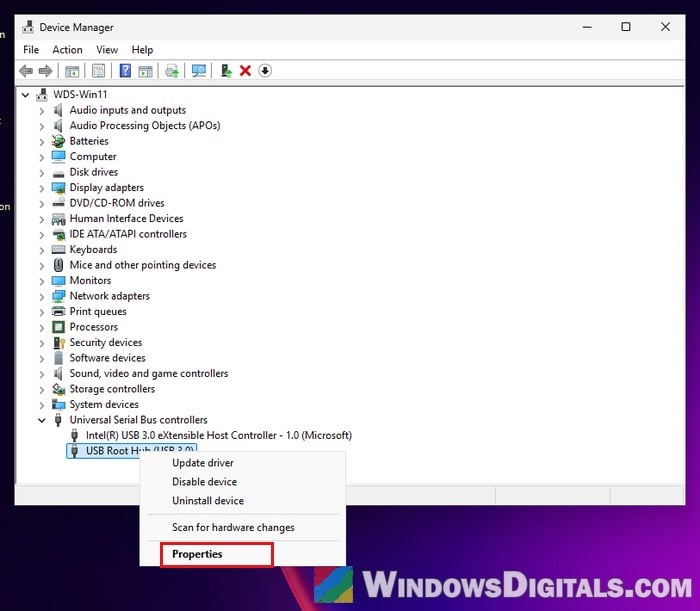
- Right-click the Start menu and select “Device Manager“.
- Expand “Universal Serial Bus controllers“.
- Right-click a “USB Root Hub” device and select “Properties“.
- Open the “Power Management” tab.
- Uncheck “Allow the computer to turn off this device to save power“.
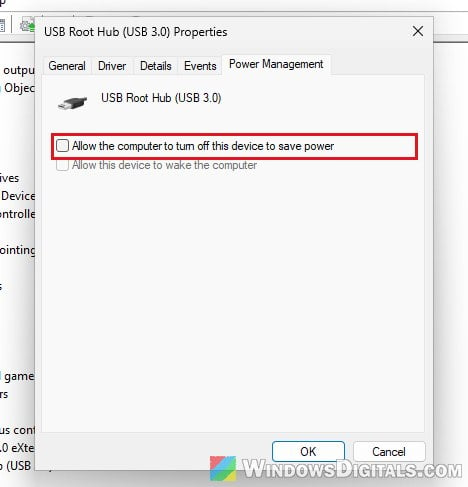
- Click “OK“.
- Do the same for every other device in the list that has a “Power Management” tab. You can skip the ones without it.
Restart your PC, then start Link and play for a while to see if it still drops.
Plug the cable straight into a USB 3 port
A cable that’s slightly loose, worn, or plugged through a hub can make Link drop for a split second, and after that the PC might not pick the headset up again. Meta recommends a USB 3 cable plugged into USB 3 ports on both ends.
- Plug the cable directly into a USB 3 port on the PC, with no hub, splitter or extension cable in between.
- Try another USB 3 port if you have one.
- If you use a USB-C to USB-A adapter, make sure it supports USB 3 too, as some only run at USB 2 speed.
- Look over the cable and its plugs for bent pins, frays or sharp kinks, and try another cable if you have a spare.

Repair the Meta Horizon Link app
If the Link app has been acting up in other ways too, repairing it is worth a try, though it may not stop the drops on its own. Meta’s support suggests this before a full reinstall. Download the Meta Horizon Link installer again from Meta’s setup page, run it, and choose the repair option instead of installing it fresh.
If that doesn’t help, uninstall the Link app, restart your PC and install it again.
Might be useful: Why set Meta Quest Link as default OpenXR runtime?
Use another way to stream to the headset
If Link keeps dropping after all of the above, there are other apps that stream PC VR games to a Quest without going through Meta’s Link connection. Steam Link and ALVR are free, while Virtual Desktop is a paid app. All three now work over a USB cable as well as Wi-Fi, though wired mode in some of them is still in beta. One of them can get you playing again while you wait for a proper fix.