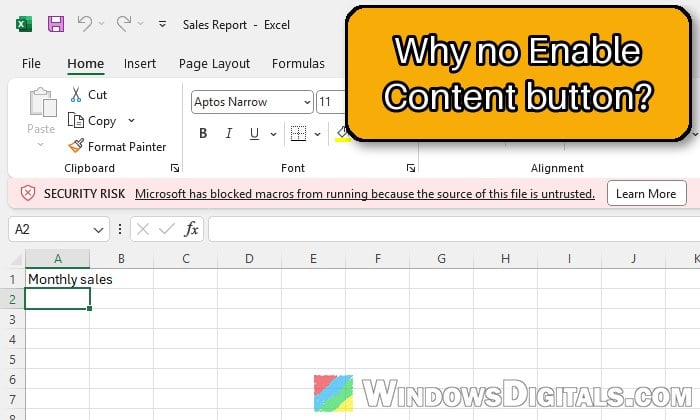
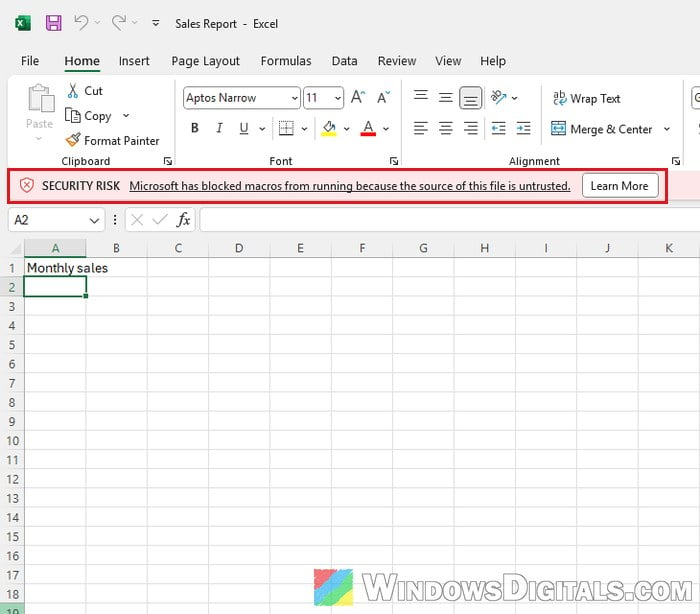
When you open an Excel workbook, you might see a red bar that says “SECURITY RISK Microsoft has blocked macros from running because the source of this file is untrusted.“, with only a Learn More button and no way to enable the content. It means Excel has decided the file came from the internet and won’t let its macros run. This guide explains why it happens and shows you how to enable the macros in files you trust.
Also see: Word and Excel Files Turn Into Numbered .tmp Files, What to do?
Why does Excel block the macros in some files?
When you download a file with your browser or save an email attachment, Windows quietly tags it with a small marker called the Mark of the Web. Since 2022, Microsoft has made Office on Windows block VBA macros by default in files that carry this marker, because macros are a common way for attackers to get malware and ransomware onto a PC.
Before this change, you’d see a yellow SECURITY WARNING bar with an Enable Content button, and one click was enough. The red SECURITY RISK bar is different: it has no button to enable anything.
The same block can also apply to files opened from a network share when Windows doesn’t treat that location as trusted. It affects Excel, Word, PowerPoint, Access and a few other Office apps on Windows, but not Office on the web, on a Mac or on a phone.
A downloaded workbook usually opens in Protected View first. Once you click Enable Editing, the red bar shows up in its place.
Please note that you should only enable macros in a file you were expecting and trust. If a stranger is pushing you to “enable content”, or you’re unsure what the macros do, just delete it.
Unblock the file in its Properties
The quickest fix for a single file is to remove the Mark of the Web from it. This is the fix Microsoft itself suggests, and one of the first things people recommend on Reddit and Microsoft’s forums. Here’s how to do it:
- Close the workbook in Excel first.
- Open File Explorer and go to the folder where the file is saved.
- Right-click the file and select Properties.
- On the General tab, look at the Security line at the bottom (“This file came from another computer and might be blocked to help protect this computer.“) and tick the Unblock checkbox.
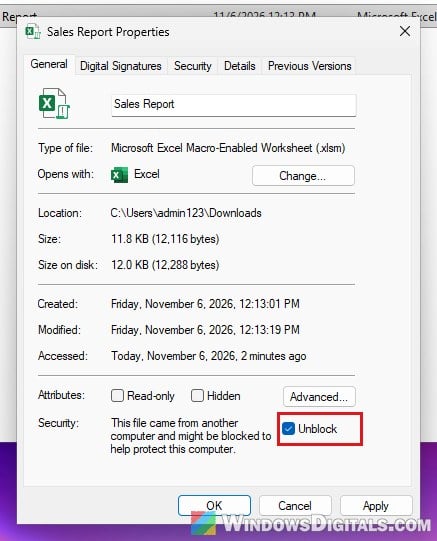
- Click Apply, then OK.
- Open the file in Excel again. You should now see the yellow SECURITY WARNING bar saying “Macros have been disabled.” instead. Click Enable Content.
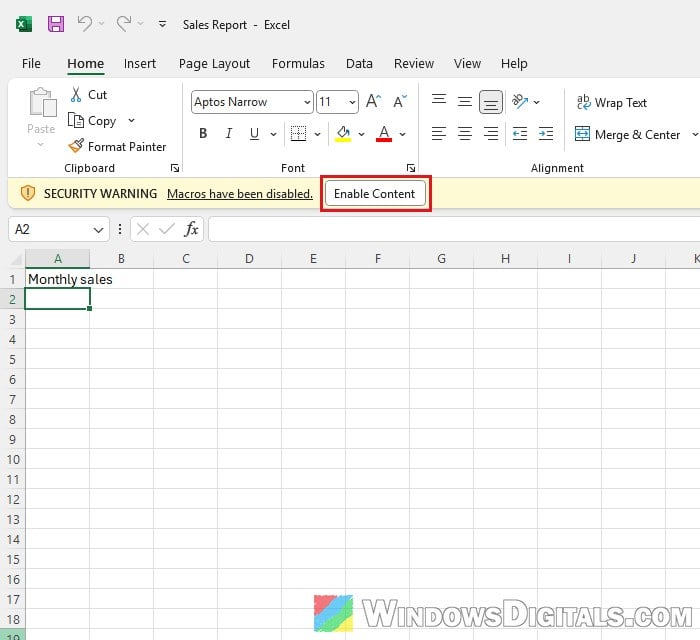
The macros should now run, and Excel will remember this file as a trusted document the next time you open it.
If you’re not sure which file in a folder has the macros, turn on file extensions first: macro-enabled workbooks end in .xlsm.
Pro tip: How to Show Hidden File Name Extensions in Windows 10 File Explorer
What if there’s no “Unblock” checkbox?
If the Security line and the Unblock checkbox aren’t there at all, the block can’t be cleared from the file’s Properties. This can happen with files on a network share, and sometimes with files already on your PC too. In that case, use one of the methods below instead: a trusted location for a folder on your PC, or the Trusted sites list for a network share or website.
Files from email, OneDrive or SharePoint
Email attachments get the same marker, so save the attachment to your drive first and then unblock it as shown above. For files on OneDrive or SharePoint, opening them with Open in Desktop App instead of downloading them through the browser avoids the marker altogether. Files that the OneDrive app syncs to your PC don’t get it either.
Unblock many files at once with PowerShell
If you have a whole folder of downloaded workbooks, ticking Unblock on each one gets old fast. PowerShell’s Unblock-File command does the same thing as the checkbox, for a whole folder in one go. Follow the steps below:
- Open PowerShell from the Start menu.
- Run the following command, replacing the path with the folder that holds your files:
Get-ChildItem -Path "C:\Path\To\Folder" -Recurse | Unblock-File
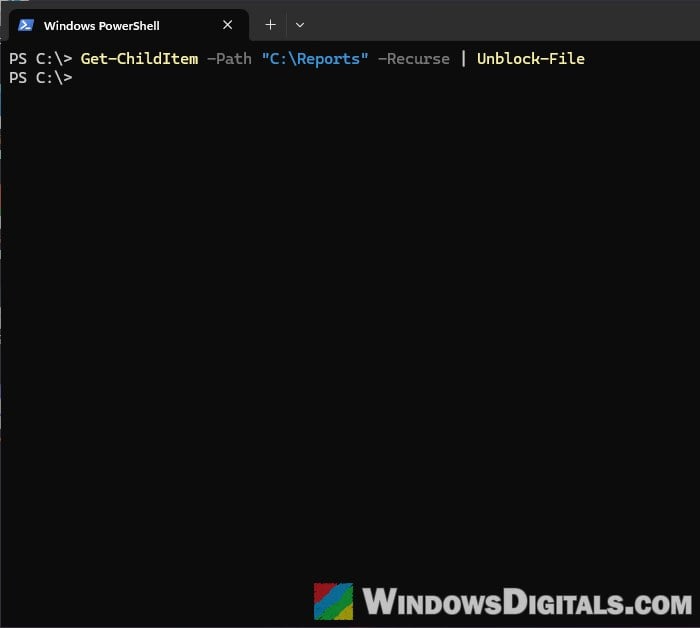
The command shows nothing when it works. Open one of the workbooks again: the red bar should be gone, and you can click Enable Content on the yellow bar.
Linked issue: PowerShell “Access to the path is denied” (Administrator)
Save your macro files in a trusted location
If you keep getting new macro files from the same place (like reports from work), unblocking every single one becomes a chore. A better long-term fix is to set a folder as a trusted location. Excel skips the internet check for files in a trusted location and opens them with their macros enabled.
Microsoft says to use trusted locations sparingly, so pick a dedicated folder that only holds files you trust, not a busy one where all sorts of files land. Here’s how to add one:
- In Excel, click File, then Options.
- Select Trust Center in the left pane, then click Trust Center Settings.
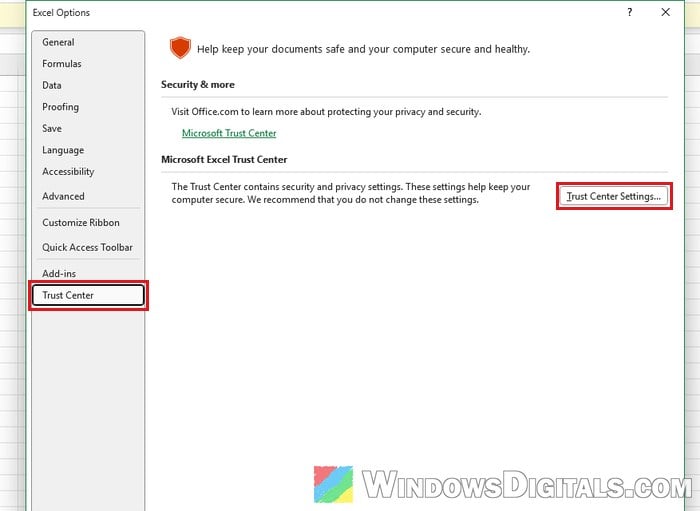
- Select Trusted Locations and click Add new location.
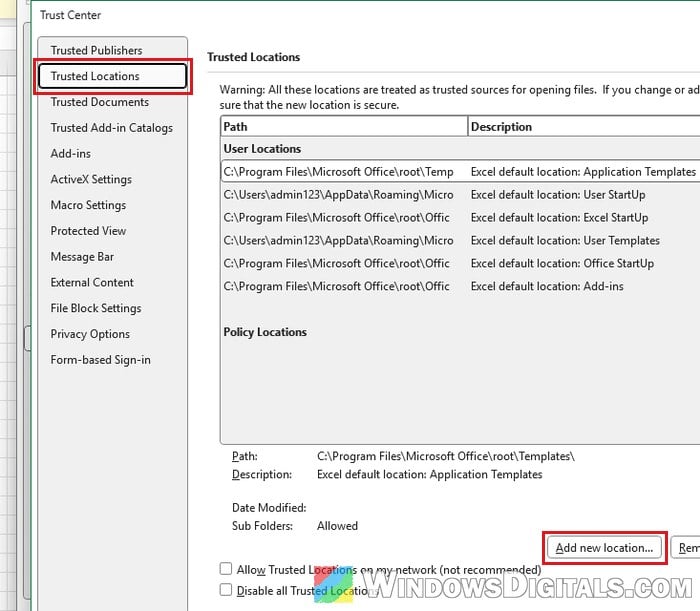
- Click Browse, pick the folder you want to trust, and click OK. If you keep files in folders inside it, also tick “Subfolders of this location are also trusted“.
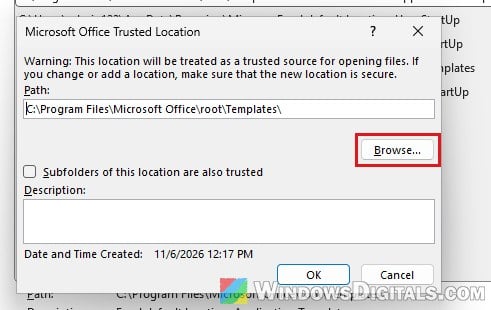
- Click OK until all the windows are closed.
Move or save your macro files into that folder, and open them from there. They should open with no red bar. This setting only applies to Excel, so if you also use macros in Word or PowerPoint, add the folder there too.
Might be useful: Excel Copy and Paste Not Working After an Office Update
Add the network share or website to “Trusted sites”
When the workbooks live on a file server or an internal website, you can tell Windows to trust that location, so macros in files opened from it aren’t blocked. Be aware that this gives the whole site more trust in Windows, not only in Office, so only add a location you fully control or trust. Here’s what you should do:
- Press the Win key, type “Internet Options” and open it (the window is called Internet Properties).
- Go to the Security tab, select Trusted sites, then click Sites.
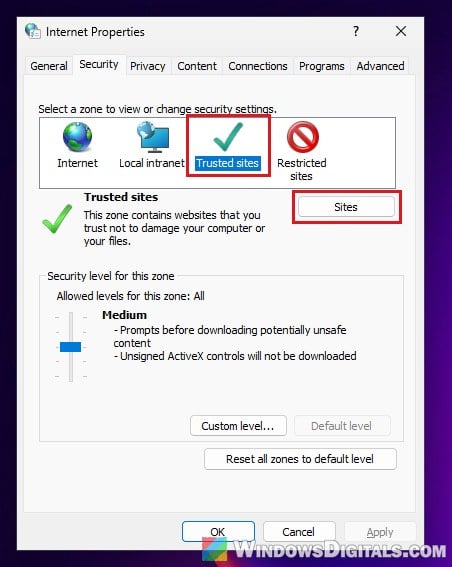
- If the address starts with
http://or it’s a network share, untick “Require server verification (https:) for all sites in this zone” first. - Type the website address or network path and click Add.
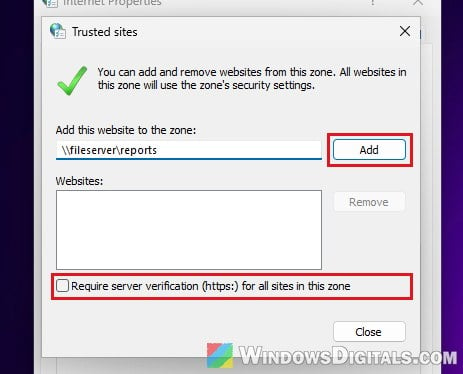
- Click Close, then OK.
Open the file from that share or website again, and the red bar should no longer show up.
Don’t just set Excel to “Enable VBA macros”
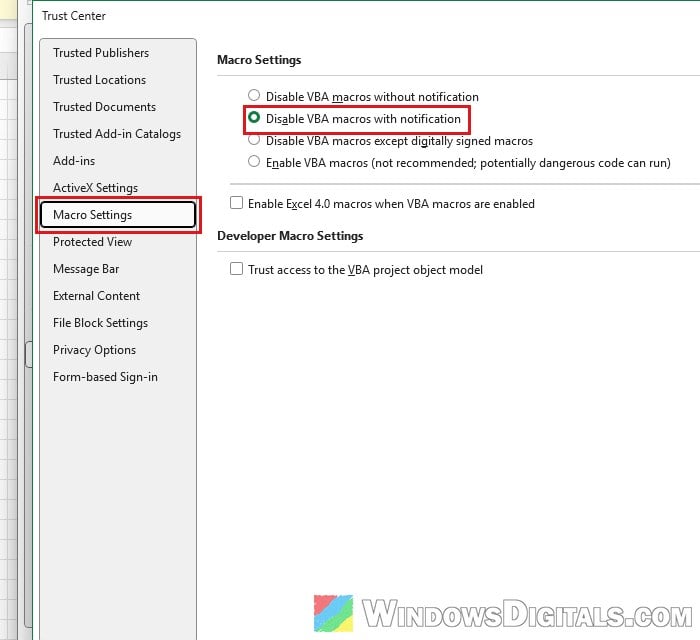
Some people suggest going to File > Options > Trust Center > Trust Center Settings > Macro Settings and choosing “Enable VBA macros (not recommended; potentially dangerous code can run)“. This isn’t a good idea: it lets the macros in all your other workbooks run without asking, and Microsoft rates it as not protected at all. It doesn’t even remove the red bar, because Office checks for the internet marker separately. For most people, it’s best to leave it on the default “Disable VBA macros with notification” and unblock or trust only the files you need.
What if it says “Your administrator has restricted the use of macros”?
If you’re on a work or school PC and see “Your administrator has restricted the use of macros in your organization” instead, or the Trust Center options are grayed out, your IT department has set this with a policy. Nothing in Excel’s own settings can change it, so you’ll need to ask them to allow the file or its location.