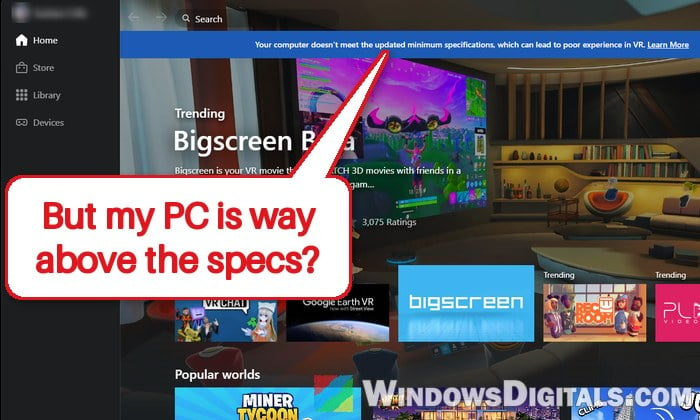
If the Meta Horizon Link app on your Windows 11 or 10 PC shows a banner saying “You won’t be able to use the Link feature, as your system’s hardware is incompatible with it” or “Your computer doesn’t meet the updated minimum specifications“, even though you have a recent graphics card like an RTX 4070 or RTX 5070, you’re not the only one. This guide will explain why the Link app flags hardware that’s clearly fast enough, and what you can do if Link actually refuses to connect.
Also see: Meta Quest Link Keeps Freezing on Newer NVIDIA Drivers, Why?
Why does Meta Horizon Link say your hardware is incompatible?
The Link app doesn’t actually test how fast your PC is. Instead, it compares your processor and graphics card with a list of hardware Meta has tested, kept in a file called Compatibility.json that the app downloads by itself. If your exact CPU or GPU isn’t on that list, the app shows the warning, no matter how powerful it is.

That’s why the message keeps showing up on PCs with brand-new parts. Meta is often slow to add new processors and graphics cards to the list, and sometimes a card is only listed under one of its versions. The RTX 4070, for example, is made with two different chips, and in September 2026 the list only had one of them. A processor missing from the list can set it off too, and Meta’s support has named this as the likely reason on a Core Ultra 9 285K PC.
Other reasons for this message are:
- Your laptop runs Link on its integrated graphics instead of the NVIDIA or AMD card.
- Your graphics card really isn’t supported by Meta Horizon Link.
- The Link app or your graphics driver is out of date, especially right after a new GPU launch.
The good news is that the warning is usually wrong and doesn’t stop Link.
Linked issue: PC can’t detect Quest 3 (USB device not recognized)
Check if Link still works, and ignore the banner if it does
For most people, the banner is only a warning. Plenty of RTX 40 and RTX 50 series owners on Reddit and Meta’s forums keep seeing it in the app, while Link and Air Link work normally. Since the check only looks at which parts you have (their model IDs), it doesn’t limit your performance either.
- Connect your headset the way you normally do, either with the USB cable or with Air Link.
- Start Link from the headset, even with the banner still showing in the PC app.
- Open a PC VR game and see if it runs as it should.
If Link starts and your games run fine, you can safely ignore the message.
What if Link really won’t connect?
Sometimes the message isn’t harmless. After an app update, the headset may stop connecting over the cable or Air Link, and its device page in the app may say “Graphics card not compatible“. Then try the fixes below.
Check your CPU and GPU against Meta’s requirements
Make sure your hardware is actually supported. Meta lists what it supports on its Windows PC requirements for Meta Horizon Link page.
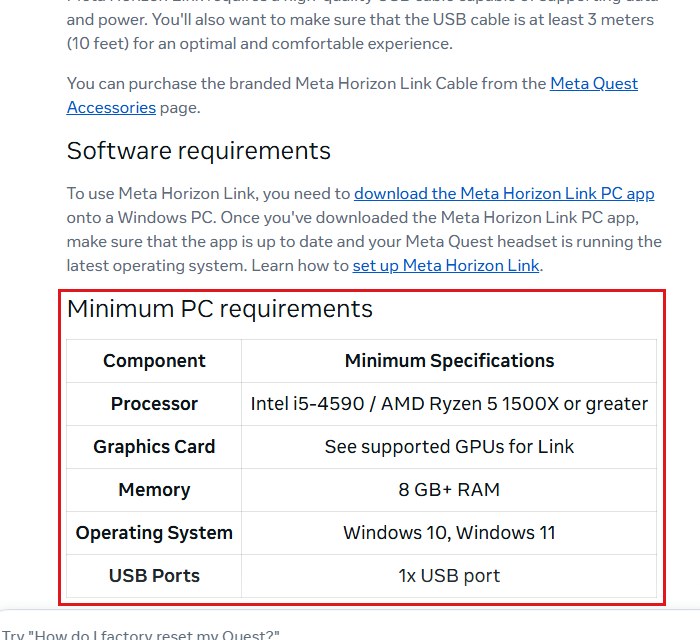
According to Meta, the minimum is an Intel i5-4590 or AMD Ryzen 5 1500X (or better), a graphics card on the supported list, 8 GB of RAM or more, Windows 10 or Windows 11, and one USB port. Meta recommends an Intel i7 or AMD Ryzen 7, an NVIDIA RTX 20 series or AMD Radeon RX 6000 series card, 16 GB of DDR4 memory, and a USB-C port.
Some graphics cards won’t work with Link no matter what you do:
- Intel Arc graphics cards are currently not supported.
- Workstation cards are not currently supported, though Meta says support is planned.
- NVIDIA RTX 2050, GTX 1050 Ti and AMD RX 560 are not supported.
Meta also doesn’t recommend the RTX 3050 laptop and RTX 3050 Ti GPUs.
Please note that Air Link also needs a graphics card with a hardware video encoder. A card without one, like the RX 6500 XT, can’t do Air Link even if it otherwise meets the requirements.
If your hardware is well above these, it’s most likely just the outdated list.
Make a laptop use its NVIDIA or AMD graphics for Link
On gaming laptops, Windows often runs apps on the power-saving integrated graphics. If the Link app runs there, it can check (or run on) the wrong GPU. Meta’s support has suggested this setting for laptops, and it has got Link working on at least one RTX 4070 laptop. Here’s how to do it:
- Press Win + I to open “Settings“.
- Go to “System > Display > Graphics“.
- Under “Custom settings for applications“, click “Add desktop app“.
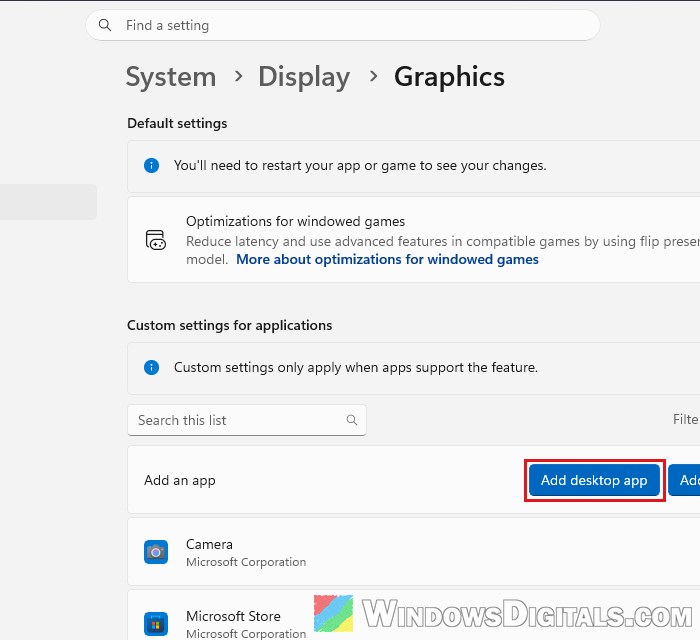
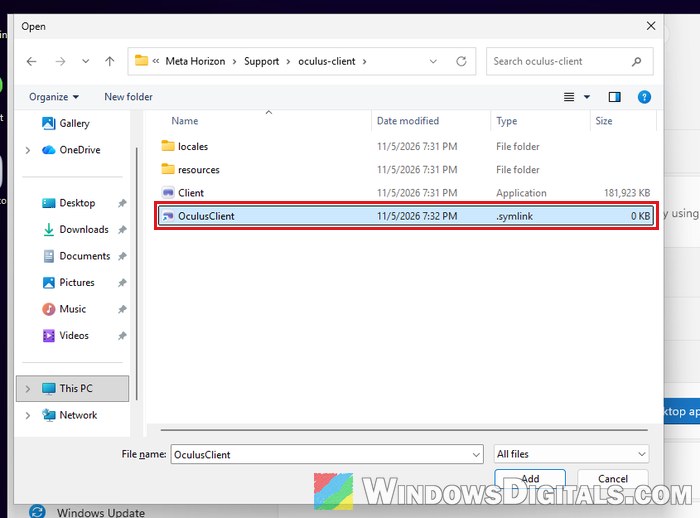
- Go to the Link app’s folder, select “OculusClient“, and click “Add“. On a default install, it’s in the folder below (older installs used
C:\Program Files\Oculus\Support\oculus-client):C:\Program Files\Meta Horizon\Support\oculus-client
- The app shows up in the list as “Client.exe“. Click it to expand its settings.
- Next to “GPU preference“, select “High Performance“.
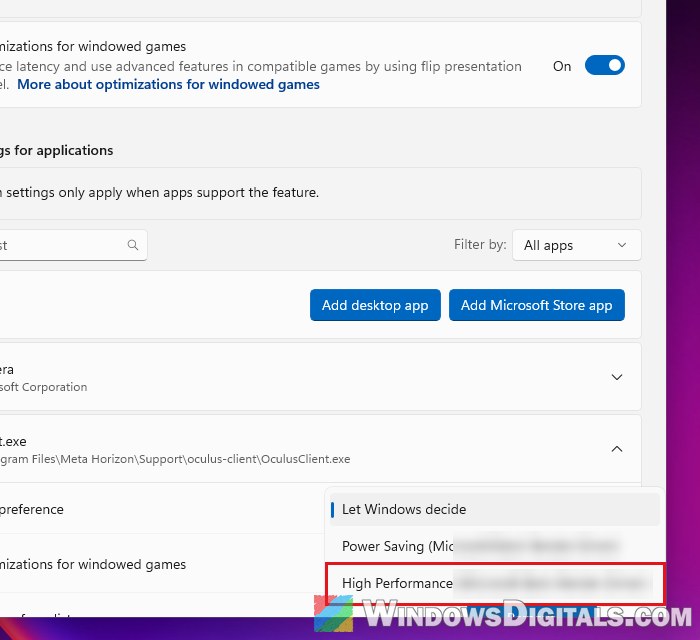 On older versions of Windows 11, click “Browse” instead of “Add desktop app“, then click “Options“, select “High performance” and click “Save“.
- Restart your PC.
After that, open the Link app and try connecting your headset. The banner may still show up, so what matters is whether Link itself starts.
Related guide: Force App or Game to Use Nvidia GPU or Integrated Graphics
Update the Link app and restart your PC
Meta says you should keep the Link app and your headset’s software up to date, and restart your PC if the compatibility check gets it wrong. This matters most with new graphics cards: when the RTX 5080 first came out, the app could flag it until a Link update fixed it.
A clean restart can also unstick a stuck Link service:
- Unplug your headset from the PC.
- Restart your PC.
- Open the Meta Horizon Link app again.
- Plug the headset back in (or turn on Air Link) and try again.
If Link connects now, you’re done, even if the banner is still there.
Update your graphics driver
Meta’s own troubleshooting steps also say to update your graphics driver. You can get the latest driver from NVIDIA, AMD or Intel, or through Windows Update.
With an NVIDIA card, drivers from 595.71 onward made Link freeze until NVIDIA fixed it in 621.01, so if Link freezes rather than refusing to start, see Meta Quest Link Keeps Freezing on Newer NVIDIA Drivers.
Learn more: How to Update Graphics Driver in Windows 11
Use another way to play PC VR if Link still refuses
If Link still won’t connect, you can play your PC VR games with one of these instead:
- Steam Link: A free app from Valve that you install on the headset. It streams SteamVR games from your PC over Wi-Fi.
- Virtual Desktop: A paid app from the Meta Quest store that streams your PC to the headset over Wi-Fi.
- ALVR: A free and open-source streamer that also has a USB mode, if you’d rather use a cable.
Keep in mind that PC VR games bought on Meta’s own store still need the Link app installed and up to date.
Suggested read: WiFi 5 vs WiFi 6 vs WiFi 6E for Virtual Desktop (VR)
Report your hardware to Meta
Meta only fixes this by adding your parts to its list, so it’s worth telling them yours is missing. Contact Meta support with the exact model of your CPU and graphics card, and say that the Link app flags them as incompatible.