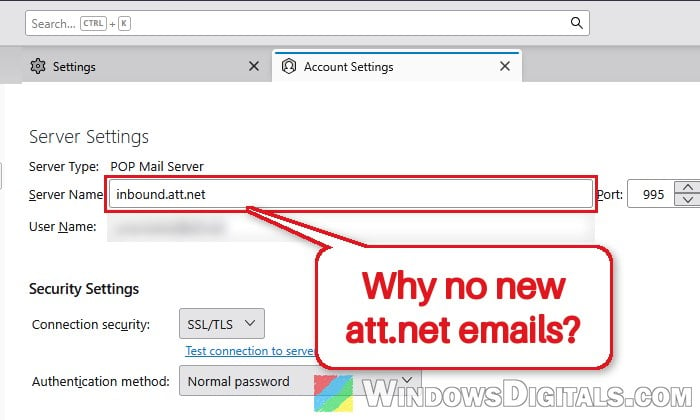
If Thunderbird on your Windows 11 or 10 PC suddenly stopped downloading new mail from your AT&T (att.net) account, either with a warning that the certificate of inbound.att.net is revoked or not trusted (while sending still works), or with “Mail server inbound.att.net responded: Server error – Please try again later“, this guide will show you why it happens and how to get your AT&T email coming in again.
Also see: How to Get Thunderbird to Start with Windows 11
Page Contents
Why did Thunderbird stop getting AT&T email?
There are two common reasons, and the message you see usually tells you which one you have:
- A certificate problem on AT&T’s POP server (October 2026). On October 5, 2026, the security certificate used by inbound.att.net, the server Thunderbird downloads POP mail from, was revoked. Thunderbird (and some antivirus apps that scan email) refused to connect, so new mail stopped coming in. Sending wasn’t affected, and accounts set up with IMAP kept working. AT&T replaced the certificate (the new one is dated October 6), and by October 8 the server was using it.
- Signing in with your normal AT&T password. AT&T doesn’t let email apps like Thunderbird sign in with your regular account password. They need a secure mail key instead. If you’re still using your normal password, AT&T’s server usually doesn’t say so. It just answers with a vague “Server error – Please try again later” (sometimes with “[SYS/TEMP]”).
The fixes below start with the certificate issue, since it hit a lot of AT&T users at once in October 2026.
Restart Thunderbird
If your problem started around October 5 and the error mentions a revoked, expired or untrusted certificate for inbound.att.net, the server side has already been fixed. Thunderbird just needs to reconnect and pick up the new certificate. Thunderbird’s own write-up of the incident recommends a simple restart. Here’s how to do it:
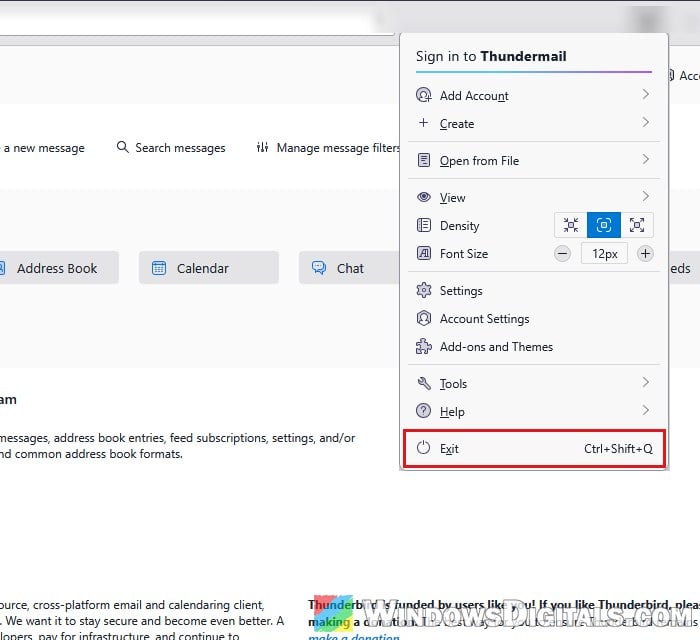
- In Thunderbird, click the menu button (three lines) at the top right and select “Exit” to close Thunderbird completely.
- Open Thunderbird again.
- Click “Get Messages” and check whether new AT&T mail comes in.
If it still shows the certificate warning, check whether the warning actually comes from your antivirus rather than Thunderbird (next section).
Related problem: Fixing Website’s Security Certificate Error on Windows 11/10
Check your antivirus’s email scanning
Some antivirus apps scan your email by sitting between Thunderbird and the mail server, so they also check the server’s certificate. During the October incident, Norton, AVG and Avast all flagged AT&T’s revoked certificate and blocked the connection. AVG users with the same inbound.att.net problem only got their mail after turning off AVG’s Email Shield.
AVG’s staff said this blocking is intended, since the antivirus was protecting you from a certificate that really was revoked. Now that AT&T has replaced the certificate, here’s what you should do:
- Update your antivirus to the latest version.
- If the warning still shows, turn its email scanning off and then back on (Avast and AVG call it Mail Shield or Email Shield, Norton calls it email protection), then restart Thunderbird.
Please note that turning off email scanning is only a test. Turn it back on once you know whether the antivirus was the problem.
Use a secure mail key instead of your AT&T password
If Thunderbird keeps asking for your password, or you get “Server error – Please try again later” from inbound.att.net, the account is most likely signing in with your normal AT&T password. AT&T requires a secure mail key for email apps. It’s a 16-character code you create on AT&T’s website. It never expires, and you make a separate one for each device or app.
Create the secure mail key on AT&T’s website:
- Sign in to your AT&T account profile on
att.com. - Select “Settings” and confirm your account when asked.
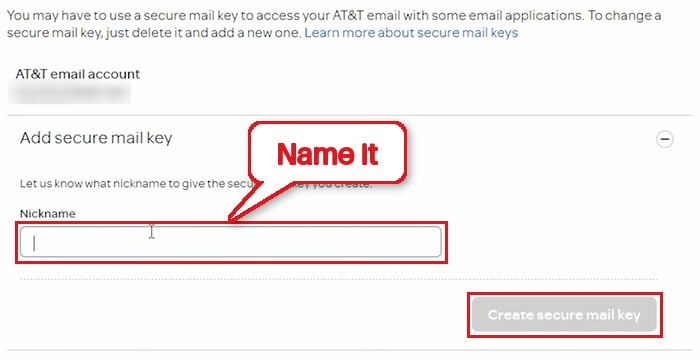
- Choose “Add secure mail key“, give it a nickname (for example “Thunderbird”), and select “Create secure mail key“.
- Select “Copy” to copy the key.
Then remove the old password from Thunderbird and use the key:
- Click the menu button in Thunderbird and select “Settings“.
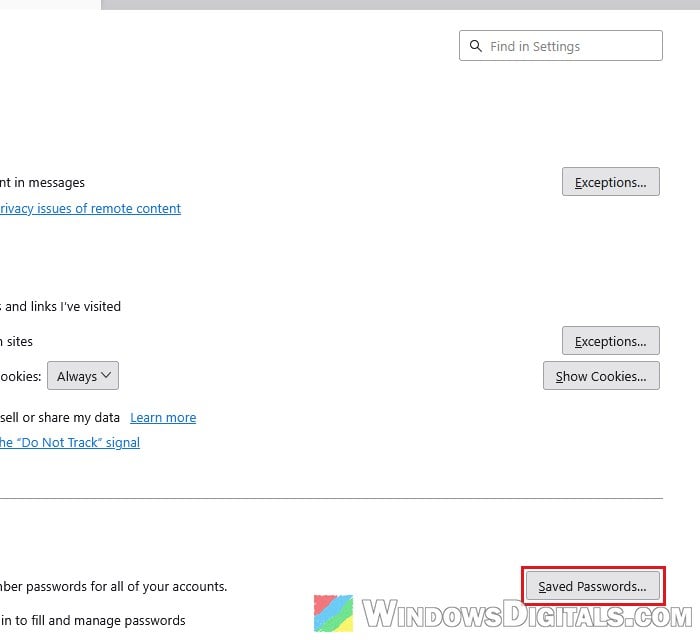
- Go to “Privacy & Security“, scroll down to the passwords section, and click “Saved Passwords…“.
- Remove the saved entries for your AT&T email address.
- Restart Thunderbird and click “Get Messages“.
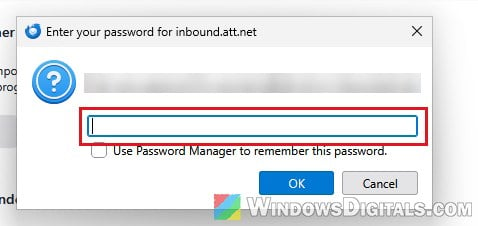
- When Thunderbird shows “Enter your password for inbound.att.net” (or imap.mail.att.net for IMAP), paste the secure mail key, tick “Use Password Manager to remember this password“, and click “OK“.
Thunderbird should now download your new AT&T mail without asking for the password again. If you use IMAP, AT&T says the key replaces the password for both the incoming (IMAP) and the outgoing (SMTP) server, so enter it again when Thunderbird asks while sending your first email.
Might be useful: Gmail Stuck on “Getting your Messages” (How to Fix)
Check the server settings
If none of the above works, make sure the account uses the server settings AT&T lists for email apps. A wrong port or connection security setting can also stop mail from coming in.
POP:
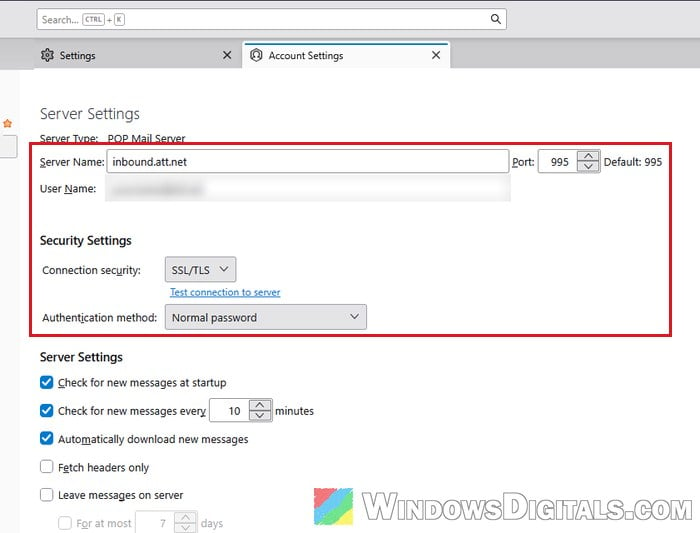
- Incoming server: inbound.att.net, port 995, SSL
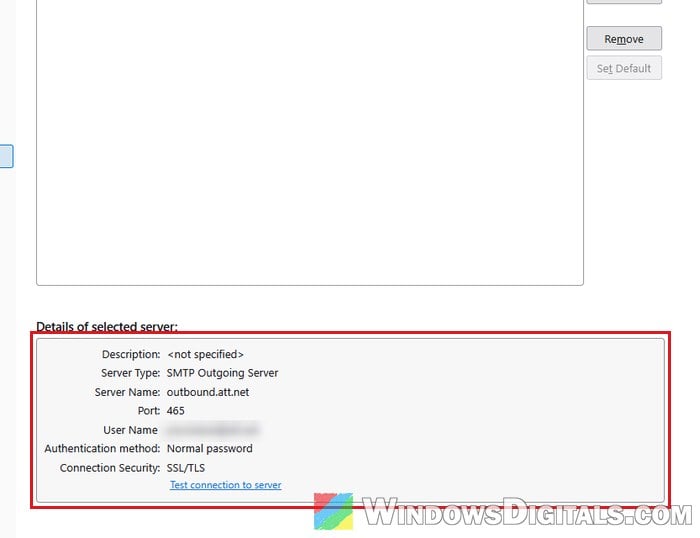
- Outgoing server: outbound.att.net, port 465, SSL
IMAP:
- Incoming server: imap.mail.att.net, port 993, SSL
- Outgoing server: smtp.mail.att.net, port 465, SSL
Your user name is your full AT&T email address, the password is your secure mail key, and the outgoing server requires authentication. Here’s how to check them in Thunderbird:
- Click the menu button and select “Account Settings“.
- Under your AT&T account, select “Server Settings” and check the server name, port and connection security.
- Then select “Outgoing Server” at the bottom of the account list and select the AT&T server. Its server name, port and connection security show under “Details of selected server” (click “Edit…” to change them).
Click “Get Messages” again to see if new mail comes in.
Should you switch from POP to IMAP?
The October certificate problem only hit inbound.att.net, the POP server. AT&T’s IMAP server kept working the whole time. If you’d like to switch, note that Thunderbird can’t change an existing account from POP to IMAP (the server type is fixed once the account is set up). You’d add your AT&T address again as a new account and choose IMAP during setup. Mail that POP already downloaded may only be on your PC, so don’t delete the old account until you’ve moved anything you want to keep.