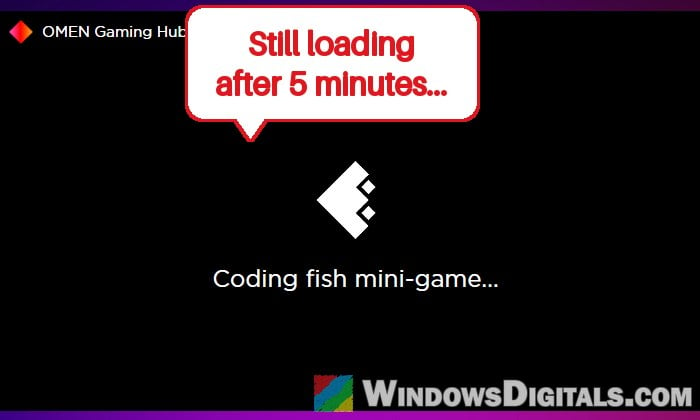
A number of people with HP OMEN laptops have run into a problem where OMEN Gaming Hub takes several minutes to open, sitting on its loading screen with those rotating lines like “Stacking resources…”, and then stays slow and laggy even after it finally shows up. This guide will show you what’s usually slowing it down and what you can do to get it loading faster.
Also see: OMEN Gaming Hub constant high CPU and RAM usage
Why does OMEN Gaming Hub take so long to open?
HP hasn’t said what’s behind it, but a few likely causes keep coming up:
- Ads and online content. OMEN Gaming Hub loads ads, deals, news and other web content every time it opens, and it shows them through Microsoft Edge WebView2. Loading all of that is a likely reason it takes so long.
- An outdated app or missing HP pieces. The app relies on HP’s OMEN Gaming Hub SDK package and other HP software underneath it. When those are out of date or broken, the app can hang on its loading screen or misbehave once it opens.
- A broken install or corrupted app data, which a repair, reset or clean reinstall can sort out.
The latest wave of reports came right after HP’s 9 November 2026 update of the app, so a newer build may play a part too. HP doesn’t offer older versions for download, so the fixes below focus on what you can change yourself.
Before anything else, give it a minute after you sign in to Windows and then close and reopen the app. Sometimes it’s just slow on the first launch after a restart and opens normally a bit later.
Update OMEN Gaming Hub from the Microsoft Store
OMEN Gaming Hub is a Microsoft Store app, and the Store is where HP pushes its fixes. If your copy is behind, getting it up to date can bring the loading time back to normal.
Here’s how to do it:
- Open the Microsoft Store.
- Click the cloud icon (Downloads) at the bottom left, just above Library.
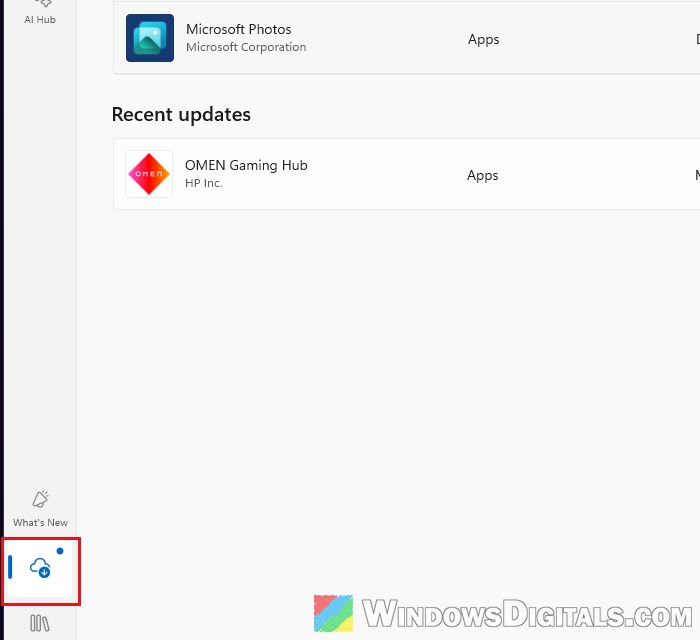
- On the Updates & downloads page, click Check for updates at the top right.
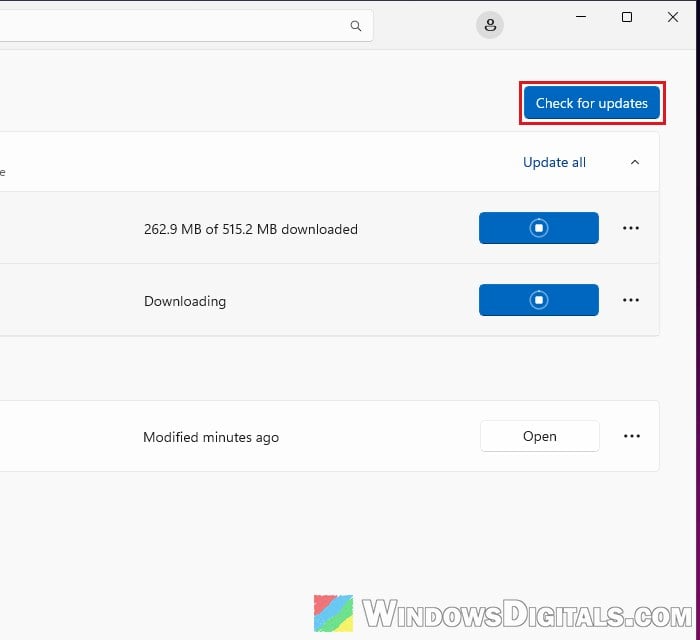
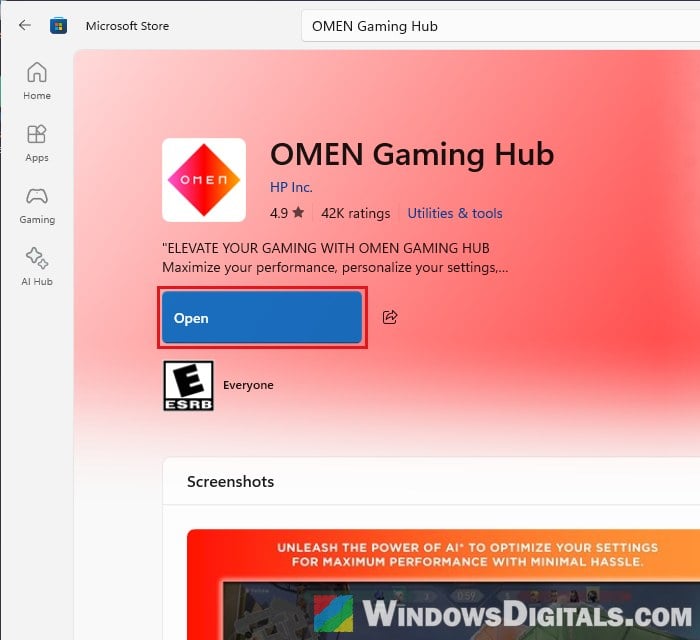
- If OMEN Gaming Hub is listed, let it update, or click Update all. You can also search for “OMEN Gaming Hub” in the Store and click Update on its page if one is offered (it shows Open when the app is already up to date).
- Restart your laptop after the update.
Open OMEN Gaming Hub again and see if it loads faster this time.
Install HP’s updates for the OMEN Gaming Hub SDK
The OMEN Gaming Hub SDK package contains the parts the app needs to talk to your laptop’s hardware, such as the overclocking and Network Booster features, according to HP. A missing or broken SDK package is a known reason the app fails to load properly.
The easiest way to get it is through HP Support Assistant. Open it, go to Updates, check for updates and install everything it offers for your model, including any OMEN Gaming Hub SDK package. You can also download the “OMEN Gaming Hub SDK Package” for your model from HP’s support website and run it.
Restart your laptop once the updates are installed, then try opening OMEN Gaming Hub.
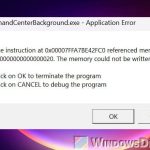
Linked issue: OmenCommandCenterBackground.exe Application Error
Repair or reset OMEN Gaming Hub in Settings
Windows can repair an installed Store app without touching its data, or reset it to a clean state. Microsoft suggests trying Repair first and only using Reset if that doesn’t help. Reset deletes the app’s data, so you’ll need to set your lighting and fan settings again afterwards.
Follow the steps below:
- Press Win + I to open Settings and go to Apps > Installed apps.
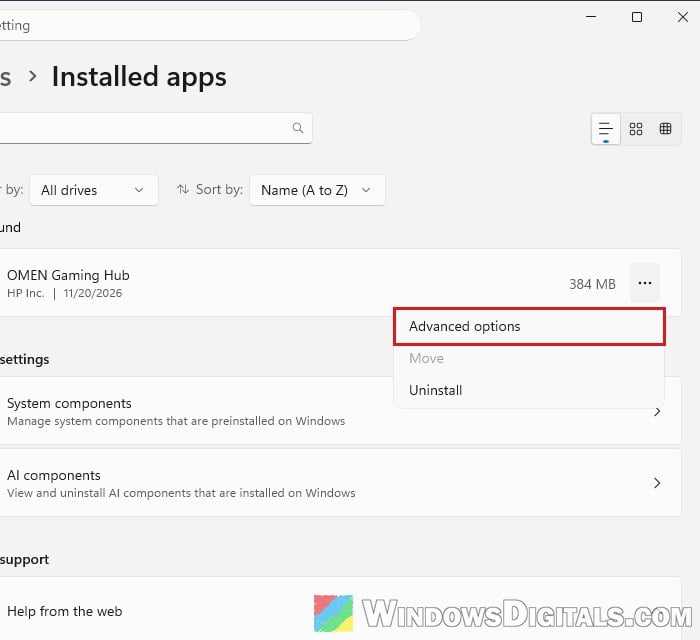
- Find OMEN Gaming Hub in the list, click the three dots (…) next to it and select Advanced options.
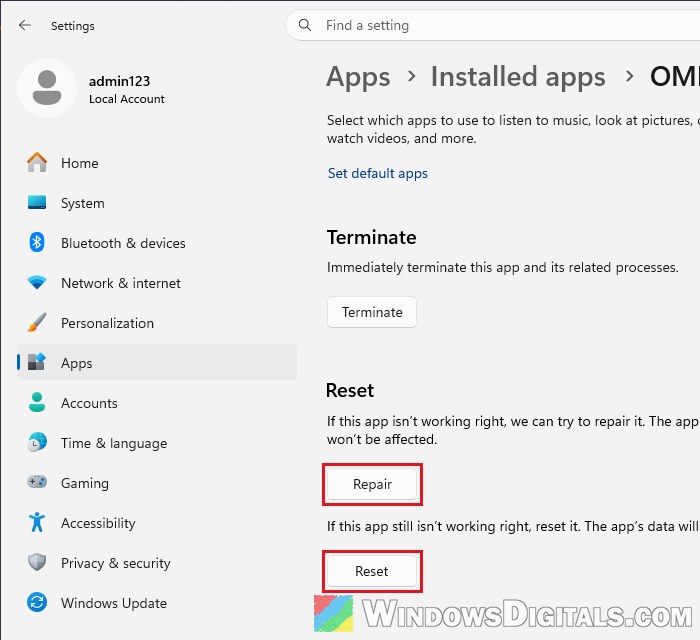
- Scroll down and click Repair. Once it’s done, try opening the app.
- If it’s still slow, come back to the same page and click Reset, then confirm.
Open OMEN Gaming Hub again and see if it gets past the loading screen any quicker.
Reinstall OMEN Gaming Hub cleanly
If repairing and resetting don’t make a difference, a clean reinstall is the next step. The order matters a little here, since you want the SDK in place before the app comes back.
Here’s what you should do:
- Go to Settings > Apps > Installed apps, click the three dots (…) next to OMEN Gaming Hub and select Uninstall.
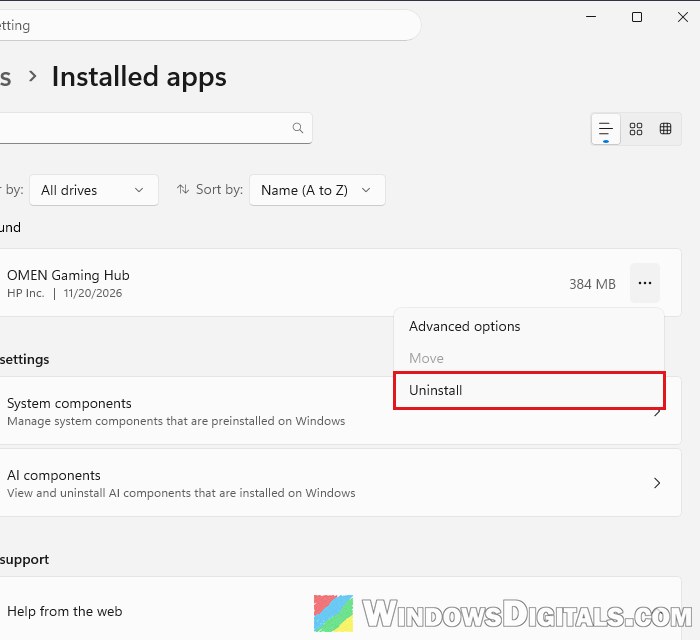
- Restart your laptop.
- Install the latest OMEN Gaming Hub SDK package for your model (see the SDK section above).
- Open the Microsoft Store, search for “OMEN Gaming Hub” and click Install.
- Restart once more, then open the app.
Please note that you shouldn’t try to get an older version from a third-party download site. HP only supports the app through the Microsoft Store together with its own packages, and an old build from a random site can come with malware or break the app further.
Block OMEN Gaming Hub from the internet
For many owners on Reddit, this is the fix that made the biggest difference. With its internet access blocked, OMEN Gaming Hub can’t pull in ads and web content while it starts, so it tends to open faster and feel less sluggish.
There are trade-offs, though. Web-based parts of the app, such as deals, rewards, news, the gallery and some OMEN AI features, stop working. The app also can’t update itself while it’s blocked, and its program folder changes with each update, so you’ll need to point the rule at the new path afterwards. Blocking the main program doesn’t always stop every ad either, since the app runs more than one process.
To block it with Windows Defender Firewall, follow the steps below:
- First, get the full path of OMEN Gaming Hub’s main program. Right-click the Start button, open Terminal, and run this command:
(Get-AppxPackage -Name *OMENCommandCenter*).InstallLocation + '\OmenCommandCenterApp\HP.Omen.OmenCommandCenter.exe'
It prints a path like
C:\Program Files\WindowsApps\AD2F1837.OMENCommandCenter_1101.2611.2.0_x64__v10z8vjag6ke6\OmenCommandCenterApp\HP.Omen.OmenCommandCenter.exe. Select it and press Ctrl + C to copy it. The version number in the folder name is why the path changes after every update. - Press Win + R, type
wf.mscand press Enter. - Click Outbound Rules on the left, then New Rule… on the right.
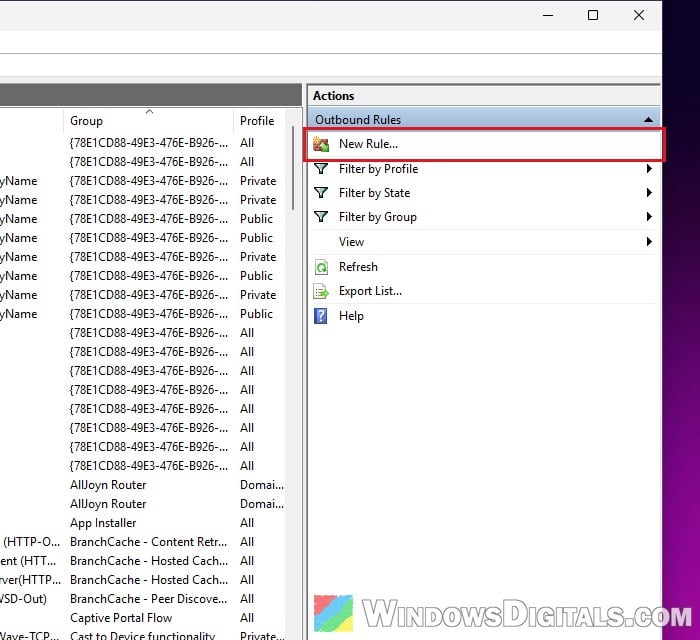
- Select Program and click Next.
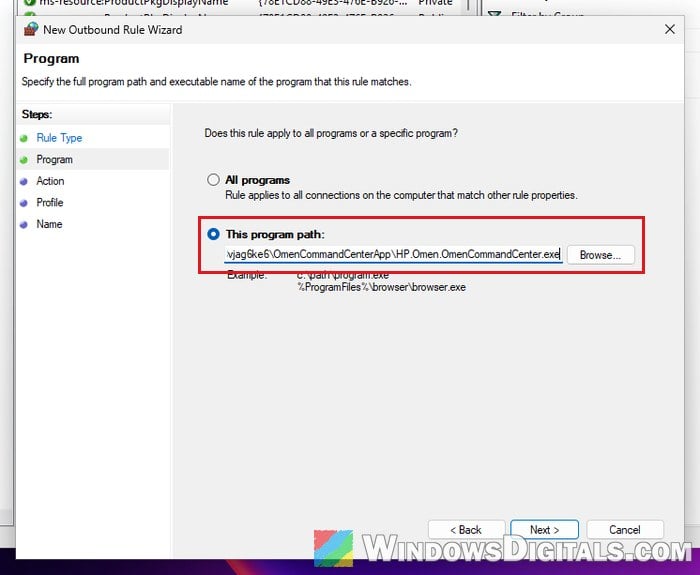
- Select This program path:, paste the path you copied, then click Next.
- Select Block the connection and click Next.
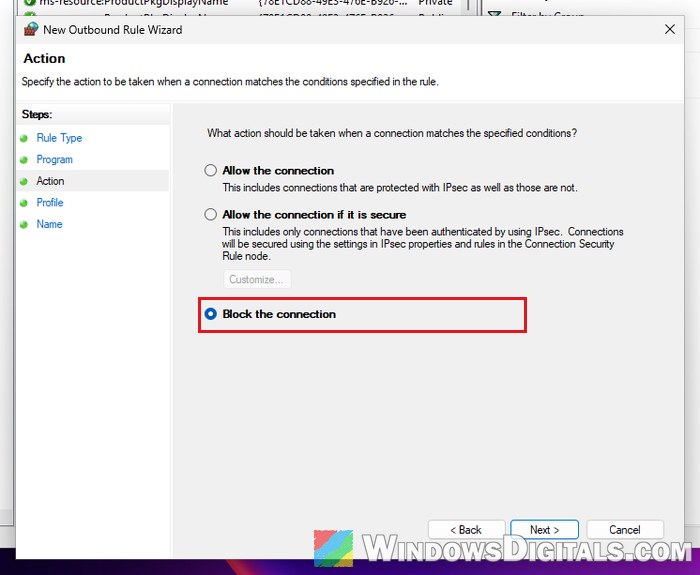
- Keep Domain, Private and Public all checked and click Next.
- Give the rule a name such as “Block OMEN Gaming Hub” and finish the wizard.
When you want to update the app later, turn the rule off, update OMEN Gaming Hub from the Microsoft Store, then change the rule’s program path to the new folder and turn the rule back on.
Pro tip: How to Block a Program From Accessing Internet in Windows 11
If it’s still slow
A few smaller things can make the app lighter once it does open. Use a static keyboard lighting effect instead of an animated or ambient one, since the moving effects use more CPU, and turn off the app’s notifications and automatic optimizations if you don’t use them.
Some people have swapped OMEN Gaming Hub for open-source community tools, but those aren’t from HP, and fan control and keyboard lighting don’t work properly with them on every model.