If you’re signed in to YouTube and a video (often a lot of them at once) shows “This video isn’t available for your account” with error code 151 in the corner of the player, while the same video plays fine when you’re signed out, the problem is your account, not the video. This guide will show you how to find out what’s restricting your account and how to get those videos back.
Also see: Why Can’t You Watch Private Videos on YouTube?
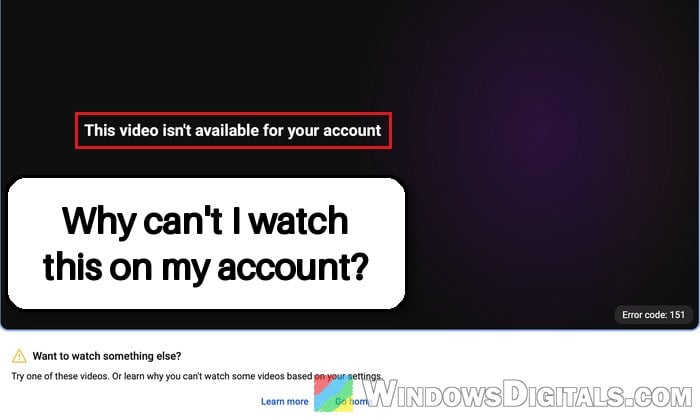
What does YouTube error 151 mean?
Error 151 means YouTube is blocking the video for the account you’re signed in with. There’s usually nothing wrong with the video or your browser. Google doesn’t explain the code on its help pages, but it shows up whenever something on the account (or the network) limits what that account is allowed to watch.
The most common reasons are:
- YouTube thinks you’re under 18. YouTube uses an age estimation model to guess whether a signed-in user is over or under 18, no matter what birthday is on the account. If it decides you’re a teen, it applies its teen protections and blocks age-restricted videos.
- Restricted Mode is turned on in your browser or on your account.
- It’s a supervised account, where a parent controls what can be watched through Family Link.
- It’s a school or work account, where the IT admin decides which YouTube videos signed-in users can watch.
- The network filters YouTube, which happens on some school, library, public Wi-Fi and mobile networks.
Most of the error 151 reports since late October 2026 seem to come down to the first one. People suddenly couldn’t watch many videos on their main account, while the same videos played in a private window or on another account, and most of the answers they got point to YouTube’s age check. Oddly, people also get it on plenty of videos that aren’t age-restricted, so don’t be surprised if a harmless video is one of them.
Don’t confuse error 151 with “This content isn’t available, try again later“, which hits every video at once and is usually linked to ad blockers, or with error 150, where the video’s owner has turned off embedding.
Linked issue: YouTube: Playback on other websites has been disabled by the video owner
First, check if it’s really your account
Before changing anything, make sure the block follows your account and not the video. Here’s how to check:
- Copy the address of a video that shows error 151.
- Open a private window in your browser. In Microsoft Edge, press Ctrl + Shift + N for a “New InPrivate window” (other browsers call it an Incognito or private window).
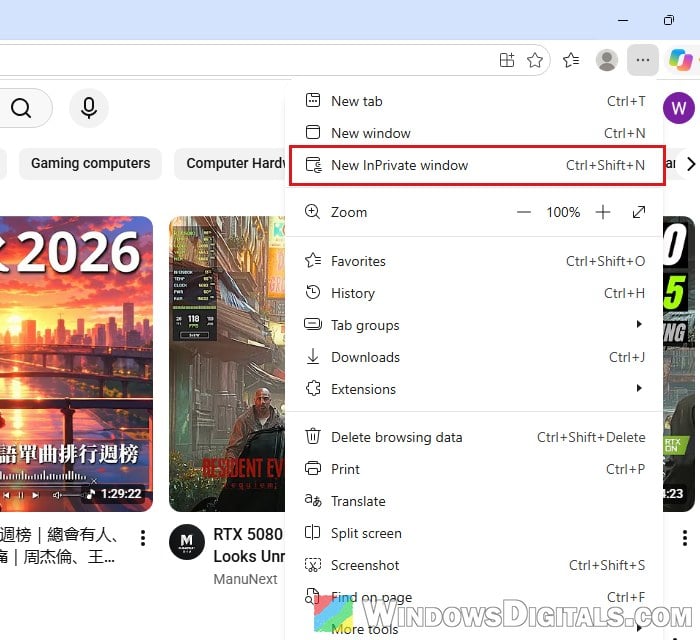
- Paste the address and play the video without signing in.
If the video plays there but not when you’re signed in, it’s your account. If it fails in the private window too, the block isn’t on your account. Either the video is age-restricted (those don’t play signed out either) or the network you’re on filters YouTube, which the next section shows.
Check YouTube’s content restrictions page
YouTube has a page that tells you whether a restriction is turned on and who set it, which saves you a lot of guessing. Go to https://www.youtube.com/check_content_restrictions while signed in with the affected account.
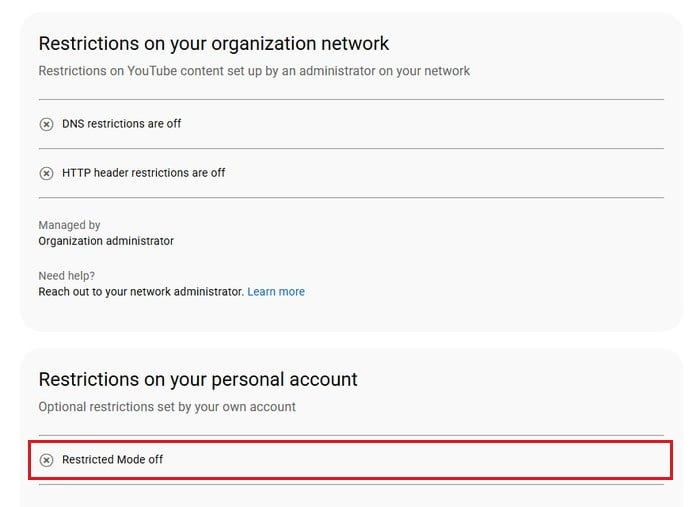
The page has two parts. “Restrictions on your organization network” shows “DNS restrictions” and “HTTP header restrictions“. If either is on, an administrator is filtering YouTube on the network you’re using. “Restrictions on your personal account” shows whether “Restricted Mode” is on in this browser.
- If a network restriction is on, it’s the school, workplace, library or mobile network you’re on. Try another network, or ask whoever runs it.
- If Restricted Mode is on, turn it off as shown in the next section.
- If everything is off and videos still show error 151 only on your account, go straight to the age verification section below (or, on a school, work or supervised account, the last section).
Turn off Restricted Mode
Restricted Mode hides videos that might be inappropriate, and it’s saved per browser and per profile. So it can be on in one browser and off in another, even with the same account.
Here’s how to turn it off on a computer:
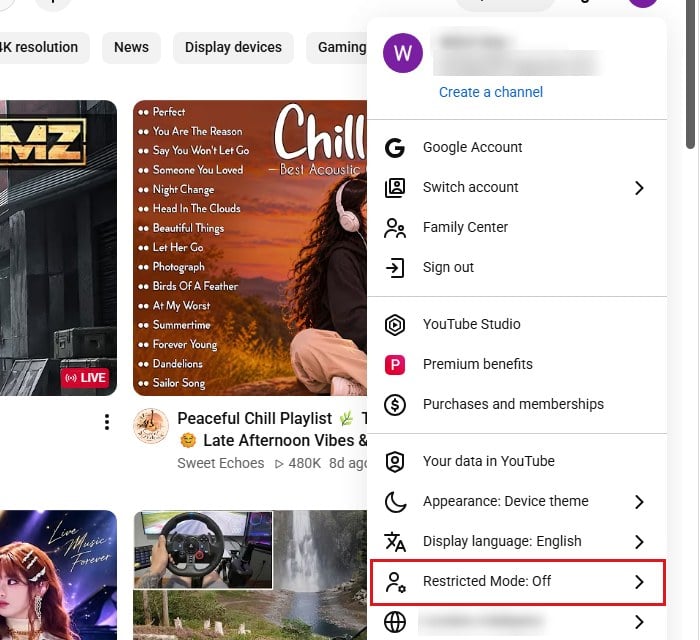
- Sign in to YouTube and click your profile photo at the top right.
- In the menu, click “Restricted Mode” (the item also says whether it’s on or off).
- In the “Restricted Mode” box that opens, switch off “Activate Restricted Mode“. As the box itself says, the setting only applies to the browser you’re in.
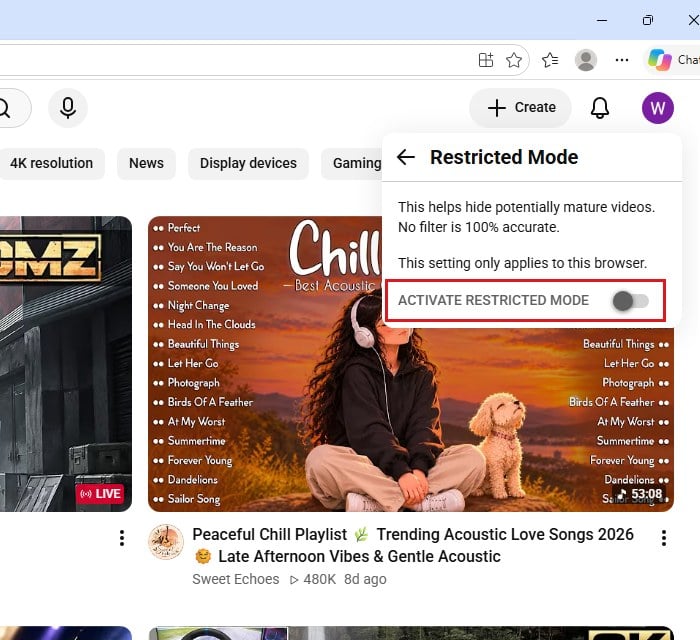
- Repeat this in every browser and browser profile you use.
Reload the video and see if error 151 is gone.
If you can’t switch it off, someone else controls it: a parent through a supervised account, a school or work admin, or the network you’re on (see the content restrictions check above).
Might be useful: YouTube or Facebook Video Won’t Play on Windows 11/10
Verify your age if YouTube thinks you’re under 18
If Restricted Mode is off and the videos still won’t play on your account, YouTube has most likely estimated that you’re under 18. It does this in the US, the UK, Canada, Australia, Brazil, the European Economic Area and several other countries, and the list keeps growing. Once an account is treated as a teen account, age-restricted videos are blocked, and you’ll also get break and bedtime reminders and only non-personalized ads.
Changing the birthday on your Google account won’t fix this, since YouTube applies its estimate regardless of the birthday you entered. The way out is to prove your age to Google.
Only do this on Google’s own page while signed in to your account. Google never asks for your ID or card details by email, and anyone offering to “verify” your YouTube account for you is running a scam. Here’s how to verify your age:
- Go to
https://myaccount.google.com/age-verificationand sign in with the account that gets error 151.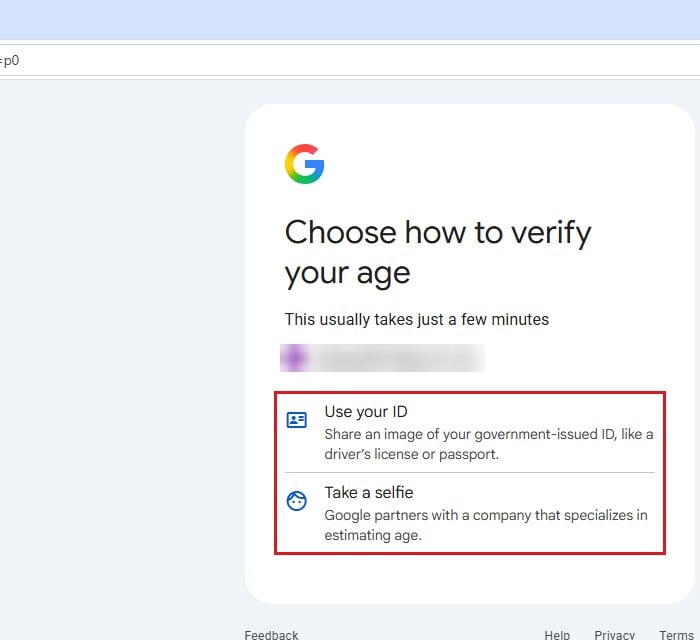
- On the “Choose how to verify your age” page, pick one of the options, such as “Use your ID” (a photo of a government ID) or “Take a selfie“. You may also be offered a credit card, since the options depend on your account, device and country.
- Follow the instructions on screen to finish.
Please note that with a credit card, Google only sends an authorization request to check that the card is valid. It’s not a charge. An ID photo is deleted once your date of birth is verified.
Once you’re verified, try the video again. If it still shows error 151, sign out of YouTube and back in.
Using a school, work or supervised account?
On these accounts you can’t lift the restriction yourself, because it’s set by someone else:
- School or work account: the IT admin sets how strict YouTube is for signed-in users and can approve specific videos. Send them the link and the error, or watch it on a personal account if you’re allowed to.
- Supervised account: the parent who manages the account can change what’s allowed in the Family Link app.
If neither applies and the videos still won’t play after all the steps above, try watching them signed out for now. Videos that are age-restricted won’t play signed out either, so if one of those still won’t play, go back to the age verification step.