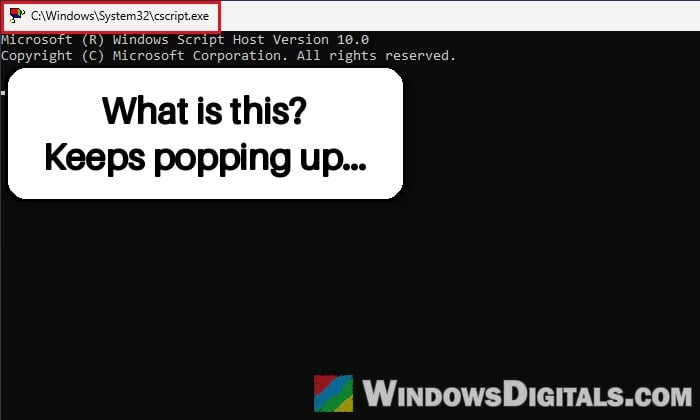
If you’re seeing a console window titled “C:\Windows\System32\cscript.exe” flash on your screen every time you start or sign in to your Windows 11 or 10 PC, or pop up again every so often while you’re working or gaming, it means some program is running a script in the background. This guide will show you what cscript.exe is, how to find what keeps starting it, and how to stop it.
Also see: PowerShell pop up for a second and high CPU usage
What is cscript.exe, and is it a virus?
cscript.exe is part of Windows itself. It’s the command-line version of Windows Script Host, the built-in tool that runs script files ending in .vbs, .js or .wsf. When a program starts cscript to run a script, Windows opens a console window for it, and that’s the black (or white) box you see for a split second before it closes again.
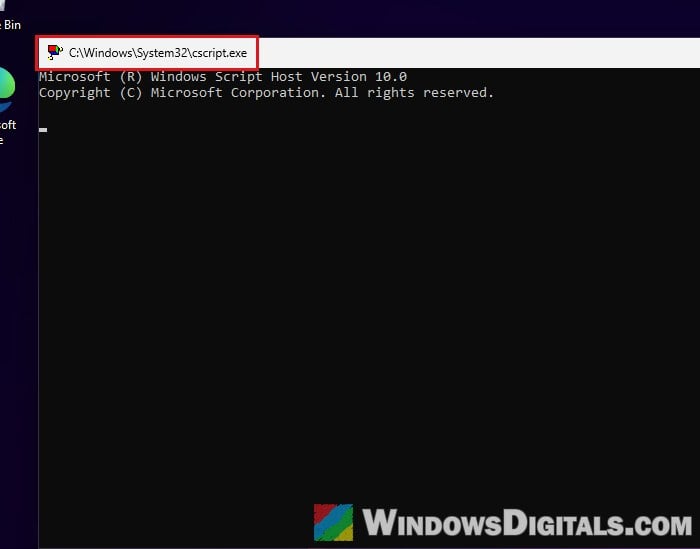
So the window itself isn’t the problem. What you need to find is which script it’s running and what starts it. The most common causes are:
- ASUS software, such as Armoury Crate and its ASUS Framework component. Most people who report this have an ASUS ROG or TUF laptop, an ROG desktop or an ASUS motherboard, and some of them say it started right after an Armoury Crate or Framework update.
- A scheduled task or startup entry from another program, such as an updater, that runs a script at sign-in or every hour.
- Malware that uses a script to keep itself running. This is less common, but a script with a random name in a folder like AppData or Temp is a warning sign.
DO NOT delete or rename cscript.exe in the System32 folder. It’s a built-in Windows file, and removing it won’t stop whatever is calling it. A malware scan often finds nothing here, because the script usually belongs to a normal program.
Linked issue: ASUS Framework (asus_framework.exe) Keeps Opening PowerShell Every 30 Seconds
If you have an ASUS PC, check ASUS’s scheduled tasks first
ASUS software runs some of its background parts through scheduled tasks, and that’s where the cscript window usually comes from on ASUS PCs. Turning those tasks off is the quickest way to find out, and it can stop the pop-up right away. Disabling a task doesn’t delete anything, so you can turn it back on later. Here’s how to do it:
- Open the Start menu, type “Task Scheduler” and open it.
- Expand Task Scheduler Library on the left and click the ASUS folder.
- Right-click each ASUS task and select Disable.
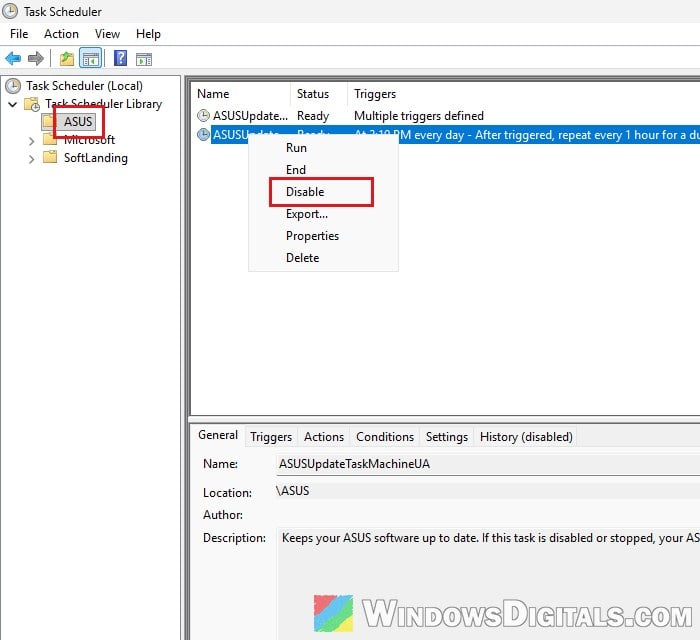
- Restart your PC (a restart, not a shutdown) and see if the cscript window still shows up.
If the pop-up is gone, an ASUS task was the cause. You can then turn the tasks back on one by one, restarting each time, to find the exact one. You can also leave them off if you don’t miss anything from Armoury Crate, but your ASUS software won’t update by itself while its update tasks are off.
Update or reinstall Armoury Crate
Since the pop-up can start right after an Armoury Crate or Framework update, a newer version may fix it. Uninstall Armoury Crate and any other ASUS utility you don’t need, then download the latest version from the ASUS support page for your laptop or motherboard. If you’d rather remove Armoury Crate completely, the ASUS Framework guide linked above shows how to use ASUS’s own uninstall tool and how to stop the BIOS from installing it again.
Find the scheduled task that runs cscript
If you don’t have ASUS software, or the window still shows up, look for the task that actually calls cscript. A task that runs at sign-in or every hour is exactly what makes the window show up at startup and then keep coming back.
A PowerShell command can list every scheduled task that runs cscript (or wscript, its windowed twin). Here’s how to do it:
- Right-click the Start button and select Terminal (Admin), then click Yes.
- Copy and paste the following command and press Enter:
Get-ScheduledTask | Where-Object { $_.Actions.Execute -match 'cscript|wscript' } | Format-List TaskPath, TaskName, @{n='Command';e={"$($_.Actions.Execute) $($_.Actions.Arguments)"}}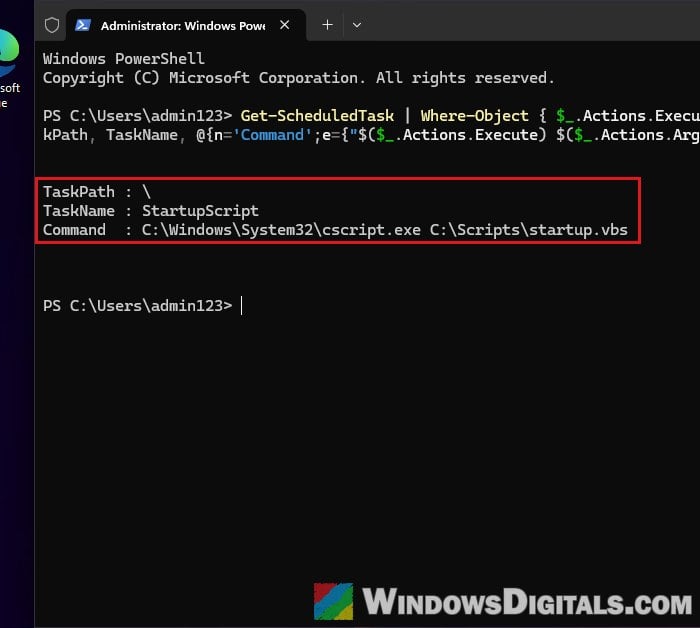
- Look at each result: it shows the task’s folder (TaskPath), its name and the full command, including the path of the script file it runs. A single
\as the TaskPath means the task sits directly in Task Scheduler Library. The folder and the script’s location usually tell you which program it belongs to. - Open Task Scheduler, go to the folder shown under TaskPath and select the task.
- Check its Actions tab, which shows the same cscript command.
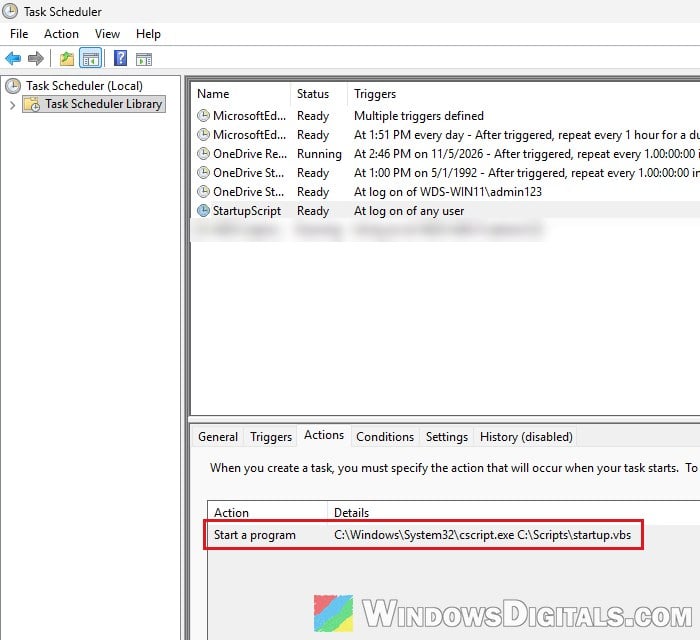
- Right-click the task and select Disable.
Restart your PC and check if the window is gone. If the script belongs to a program you still use, try updating or reinstalling that program instead, since a broken updater script may be what keeps starting it.
Use Autoruns to check every startup location
Scripts can also start from the Startup folder, the Run keys in the registry or a few other places. Autoruns, a free tool from Microsoft’s Sysinternals, shows all of them in one list. Here’s what you should do:
- Download Autoruns from
https://download.sysinternals.com/files/Autoruns.zipand unzip it. - Right-click Autoruns64.exe, select Run as administrator, click Yes, and then click Agree on the license window.
- Wait for the scan to finish, then type “cscript” in the Quick Filter box at the top. The Everything tab now shows only the entries that run cscript, grouped by where they start from (Task Scheduler, Logon and so on).
- Click an entry. The panel at the bottom shows its full command, including the path of the script file.
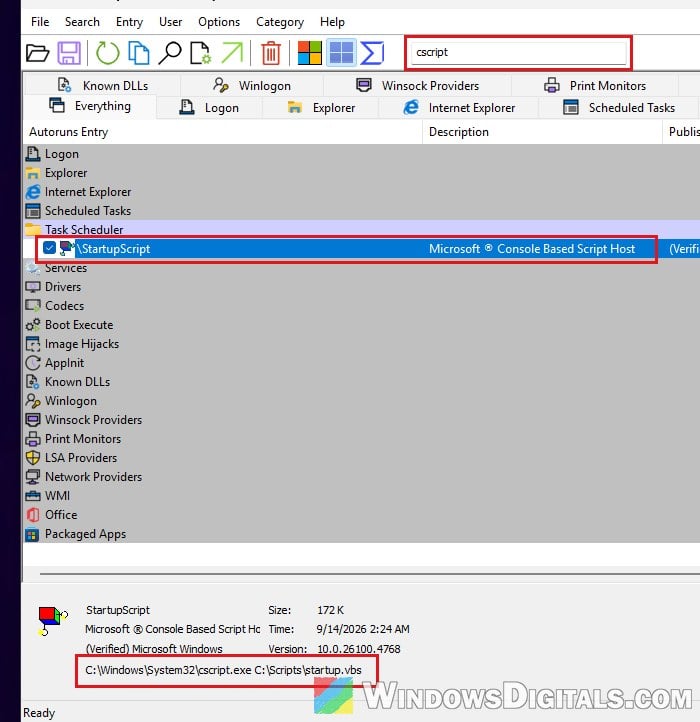
- To turn an entry off, uncheck its box. Don’t delete anything yet, so you can undo it.
After unchecking the entry, restart your PC and see if the cscript window still shows up. If nothing shows up for “cscript” in the first place, also try “wscript“, the other script host.
Might be useful: How to Disable Startup Programs in Windows 11
Scan your PC if the script looks suspicious
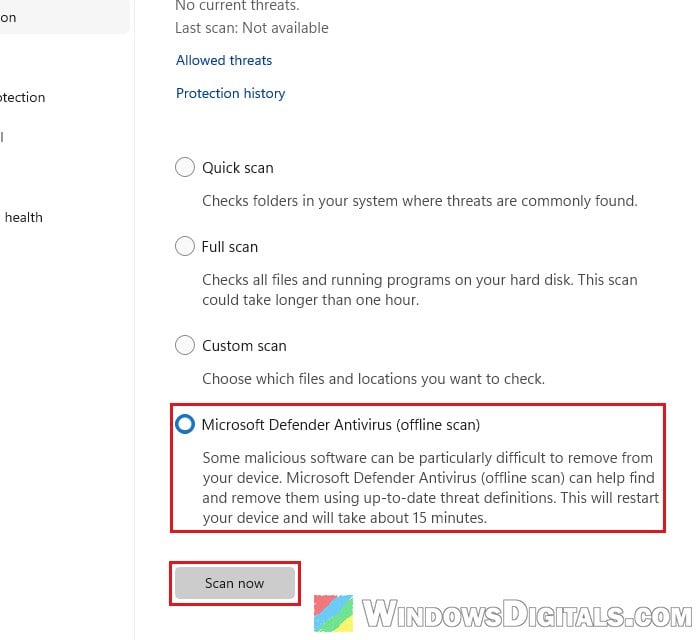
If the script sits in a folder like AppData, Temp or ProgramData with a random name, or you can’t tell which program it belongs to, treat it as possible malware. Disable its entry first, then run a Microsoft Defender Offline scan, which restarts your PC into a recovery environment to find malware that’s hard to remove while Windows is running. Follow the steps below:
- Save your work and close your apps first, because the scan restarts your PC.
- Open Windows Security from the Start menu.
- Go to Virus & threat protection and click Scan options.
- Select Microsoft Defender Antivirus (offline scan) and click Scan now. Your PC will restart to run the scan, which takes about 15 minutes.
When the PC is back in Windows, open Windows Security again and check Protection history to see what was found and removed.