If your own PC suddenly says “Task Manager has been disabled by your administrator” even though your account is the administrator, and maybe Registry Editor, Command Prompt or the Run box won’t open either, something has switched on a set of Windows policies that are meant for IT admins. This guide will walk you through finding out what turned them on, removing it, and getting your tools back.
Also see: Troubleshooting has been disabled by Group Policy Windows 11
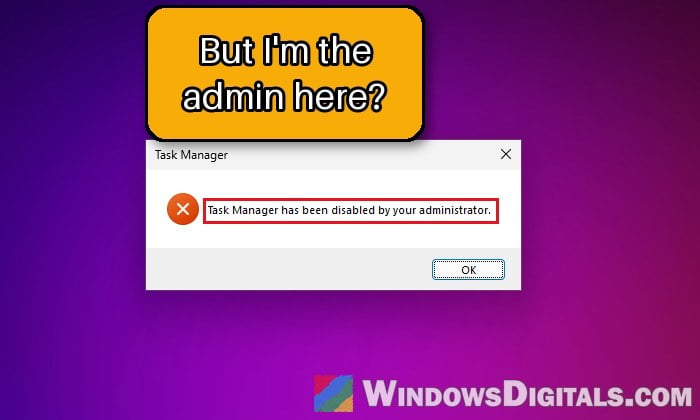
Why is Task Manager disabled when you’re the administrator?
The message doesn’t mean someone took your admin rights away. According to Microsoft, it shows up when a Group Policy or a registry setting blocks Task Manager for your account. Companies use these settings to lock down work PCs, but a dodgy program you install can switch them on too.
Task Manager is rarely the only thing blocked. Depending on which settings are on, you might also see:
- “Registry editing has been disabled by your administrator” when you open Registry Editor.
- “The command prompt has been disabled by your administrator” in Command Prompt, or
.batand.cmdfiles not working. - The Run box (Win + R) missing.
- A “This operation has been cancelled due to restrictions in effect on this computer” message when you try to shut down with Alt + F4.
- “Your system administrator has disabled Programs and Features” in Control Panel, so you can’t uninstall anything.
- Lock (Win + L), Change a password or Sign out missing from the Ctrl + Alt + Del screen.
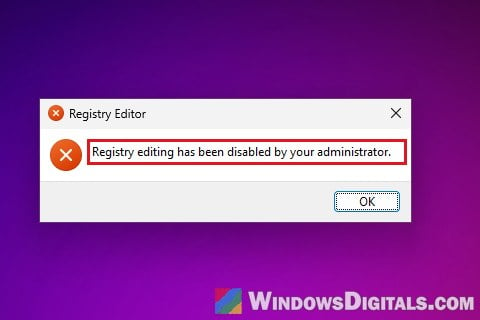
On a PC that isn’t managed by a school or a company, these settings almost never turn on by themselves. In most cases reported on Reddit, it started right after installing game mods, a cracked game or app, or some other questionable download. Malware often blocks Task Manager and Registry Editor on purpose, so you can’t see it running or undo its changes. That’s why it’s best to get rid of whatever caused it first, and only then turn the blocks off.
Make sure the PC isn’t managed by work or school
If the PC came from your work or school, or it’s joined to a company domain, the block was most likely set on purpose, and only their IT team can lift it. A PC once set up by an employer or school can still carry their policies.
- Open Settings and go to Accounts > Access work or school.
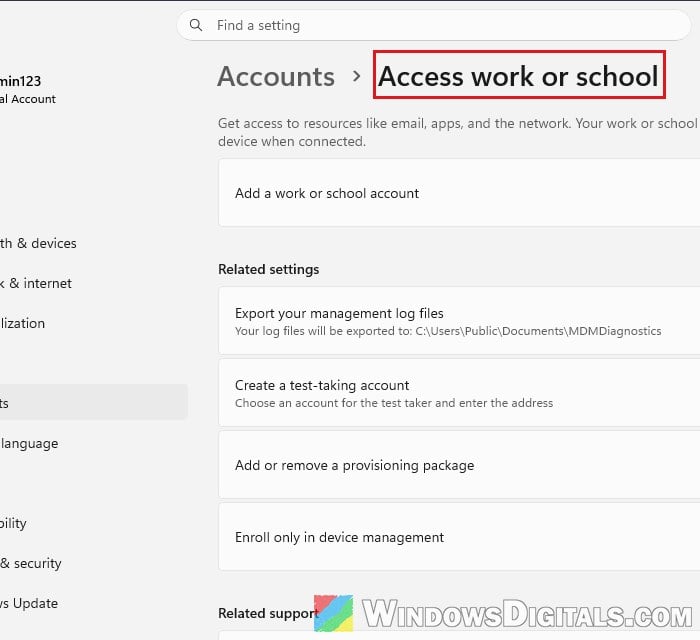
- A work or school account listed here can push its policies to the PC. If it’s an old account you no longer use, the guide below shows how to remove it.
- While you’re in Accounts, open Your info and check that it says Administrator under your name.
Related guide: Can’t Remove School or Work Email from Windows 11 or 10
Scan your PC for malware first
If nothing from work or school is connected, assume something on the PC set the blocks. If you turn the blocks off but leave the culprit on your PC, it can just switch them back on.
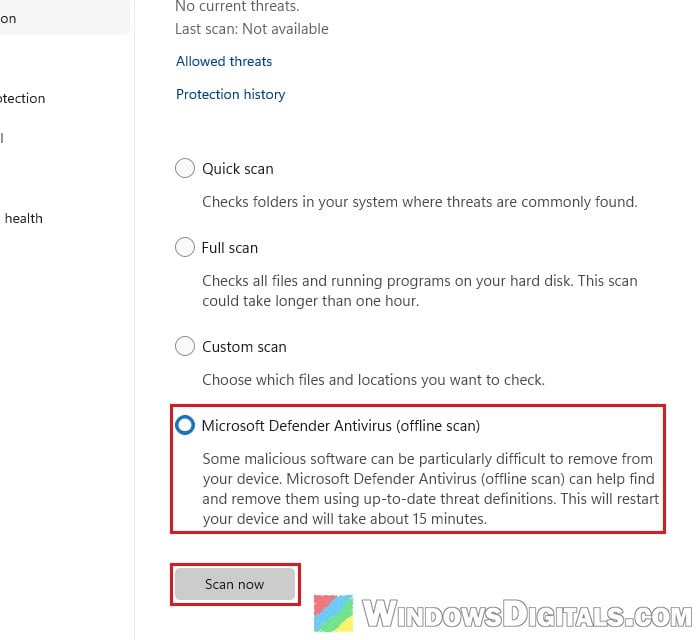
- Open Windows Security and go to Virus & threat protection > Scan options.
- Run a Full scan first. When it’s done, come back and select Microsoft Defender Antivirus (offline scan), then click Scan now. The PC restarts and scans before Windows loads, where hidden malware can’t dodge it.
- For a second opinion, scan with a free on-demand scanner such as Malwarebytes.
- Uninstall the mod, crack or program you installed right before the problem started.
Pro tip: How to Remove Virus Using CMD in Windows 11 or 10
Turn the policies off in Group Policy Editor (not on Home)
The Local Group Policy Editor shows the blocks as named settings. It’s only in the Pro, Enterprise and Education editions; on Home, skip to the next section.
- Search for “Edit group policy” in the Start menu and open it (or run
gpedit.msc). - Go to User Configuration > Administrative Templates > System > Ctrl+Alt+Del Options.
- Double-click Remove Task Manager, set it to Not Configured, and click OK. Do the same for Remove Lock Computer, Remove Change Password and Remove Logoff if any of them say Enabled.
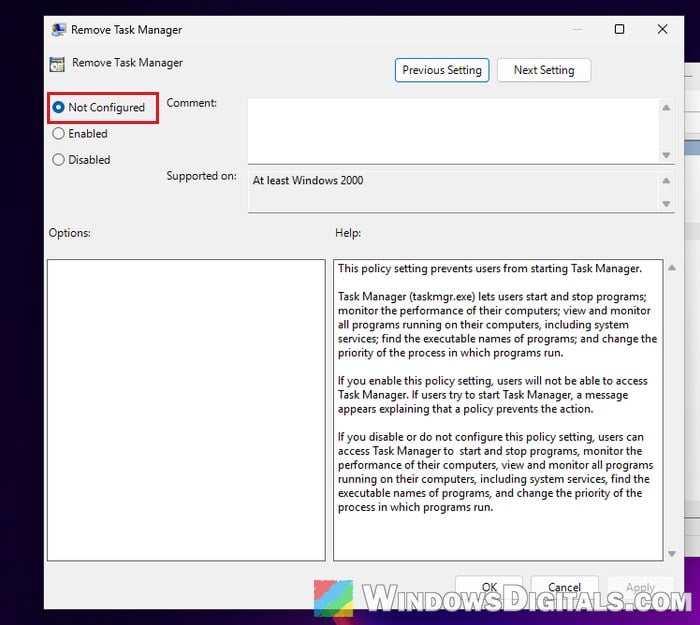
- Click System one level up and look at Prevent access to registry editing tools, Prevent access to the command prompt and Don’t run specified Windows applications. Set any that are Enabled to Not Configured.
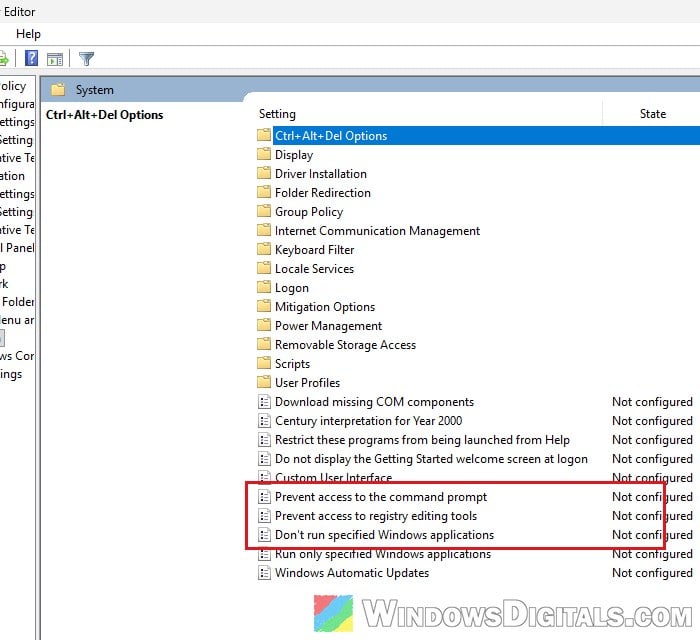
- If Programs and Features is blocked, go to User Configuration > Administrative Templates > Control Panel > Programs and set Hide “Programs and Features” page to Not Configured.
- Open Command Prompt or PowerShell and run the following command, or just restart the PC:
gpupdate /force
Press Ctrl + Shift + Esc to see if Task Manager opens now.
Please note that malware usually writes these values straight into the registry, so the editor can show every setting as Not Configured while the block stays. If that happens, use the registry method below instead.
Remove the block from the registry (Home and Pro)
This works on every edition and deletes the policy values themselves. Incorrectly changing the registry can break Windows, so please at least create a system restore point first. If in doubt, get someone who knows to help you instead.
- Search for “Registry Editor” in the Start menu and open it (or run
regedit). - Copy and paste the following path into the address bar and press Enter:
HKEY_CURRENT_USER\Software\Microsoft\Windows\CurrentVersion\Policies\System
- Right-click DisableTaskMgr, select Delete and click Yes. Delete DisableRegistryTools, DisableLockWorkstation and DisableChangePassword too if they’re there.
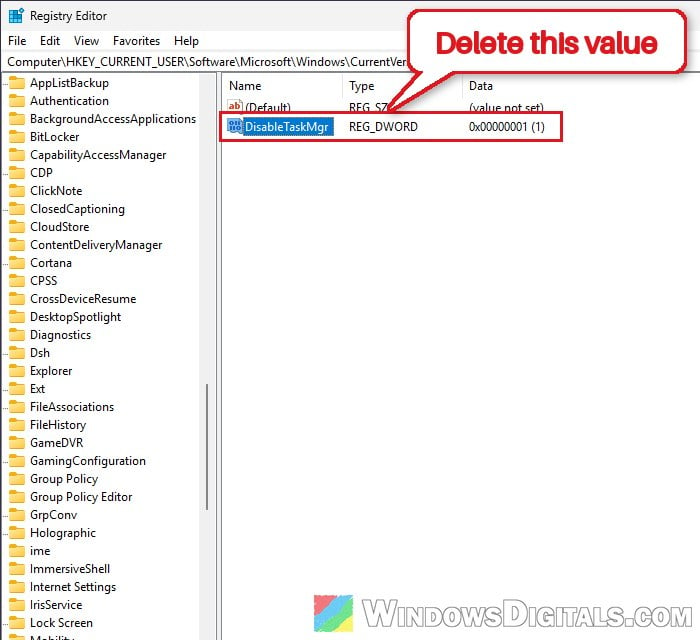
- Go to
HKEY_CURRENT_USER\Software\Microsoft\Windows\CurrentVersion\Policies\Explorerand delete NoRun, DisallowRun and NoLogoff if you see them. - If Command Prompt is blocked, go to
HKEY_CURRENT_USER\Software\Policies\Microsoft\Windows\Systemand delete DisableCMD. - Check
HKEY_LOCAL_MACHINE\SOFTWARE\Microsoft\Windows\CurrentVersion\Policies\Systemtoo, and delete DisableTaskMgr there if it’s set. - Restart the PC.
After the restart, press Ctrl + Shift + Esc to check that Task Manager opens.
What if Registry Editor is blocked too?
The registry-tools policy only stops Registry Editor and the reg command from starting. It doesn’t stop other programs from changing the registry, so PowerShell can still delete the values. Search for “PowerShell” in the Start menu, select Run as administrator, and run these two commands, pressing Enter after each:
Remove-ItemProperty -Path HKCU:\Software\Microsoft\Windows\CurrentVersion\Policies\System -Name DisableTaskMgr
Remove-ItemProperty -Path HKCU:\Software\Microsoft\Windows\CurrentVersion\Policies\System -Name DisableRegistryTools
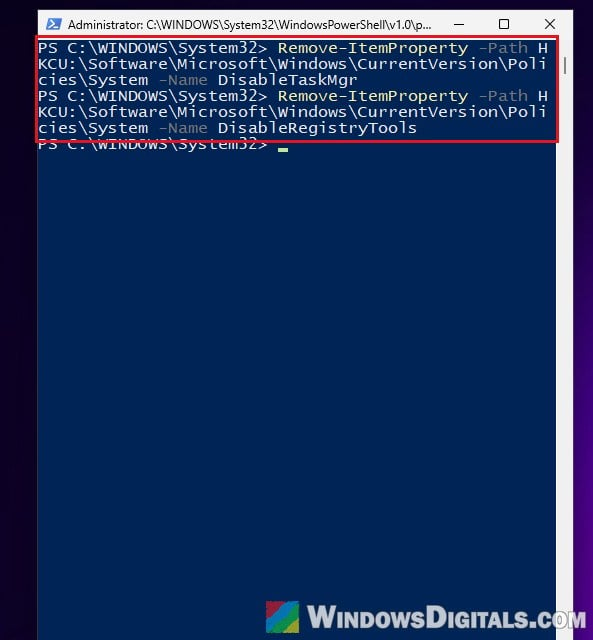
An error saying the property doesn’t exist just means that value wasn’t set. Then clear the other values in Registry Editor.
Fix it from the recovery environment when nothing opens
If even PowerShell is blocked, use the Command Prompt in the recovery environment, which your account’s policies don’t affect.
Related guide: Enter Safe Mode in Windows 11/10 when PC isn’t booting
- Open Start, click the Power button, then hold Shift and click Restart.
- Go to Troubleshoot > Advanced options > Command Prompt.
- Find your user folder name with this command (the Windows drive might not be
C:here, so tryD:if your folder isn’t listed):dir C:\Users
- Load your account’s registry, remove the block and unload it again. Replace
YourNamewith your folder name (andC:with the drive where you found it) and press Enter after each command:reg load HKLM\OfflineUser "C:\Users\YourName\NTUSER.DAT" reg delete "HKLM\OfflineUser\Software\Microsoft\Windows\CurrentVersion\Policies\System" /v DisableTaskMgr /f reg delete "HKLM\OfflineUser\Software\Microsoft\Windows\CurrentVersion\Policies\System" /v DisableRegistryTools /f reg unload HKLM\OfflineUser
- Close the Command Prompt and click Continue to start Windows.
Back in Windows, clear the remaining values and run the malware scans.
Reset or reinstall Windows if it keeps coming back
If the blocks come back after you remove them, or the scans keep finding something, the safest option is to back up your files and reset or reinstall Windows. Malware can also break Reset this PC, so if the reset won’t start, reinstall from a USB drive made on another computer.
Since malware was likely involved, also change the passwords of your important accounts (email, banking, Steam, Discord) from another device.